

The WooCommerce Side Cart: How to Set It Up Fast? (Guide)
March 12, 2026
The Best Interior Design Website Templates For Stylish Portfolios
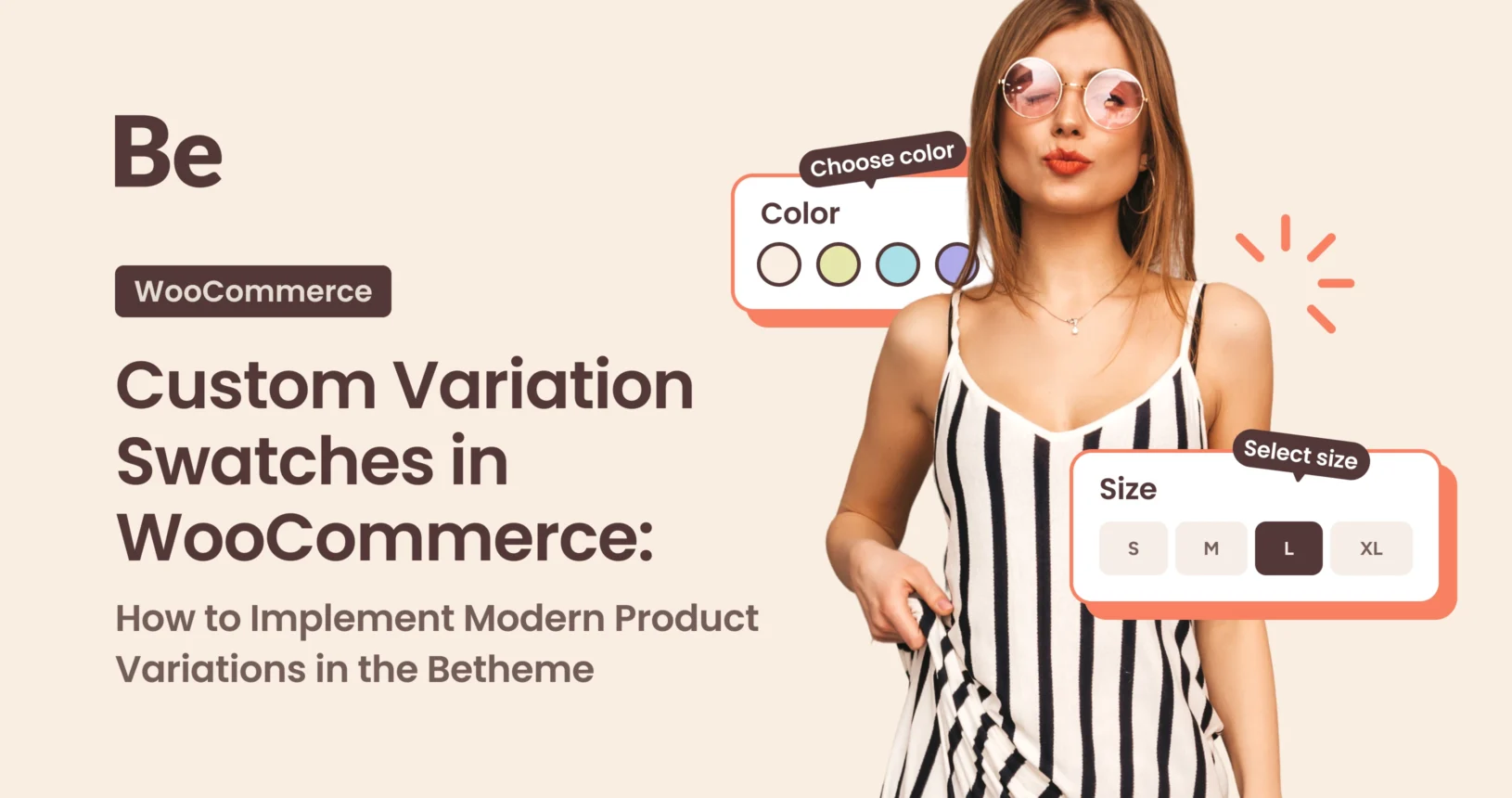
March 19, 2026Standard dropdown lists in WooCommerce are a thing of the past. They often lower conversion rates, especially on mobile devices. Modern users want to see colors, material textures, or specific sizes immediately, without unnecessary clicks. By choosing Betheme, you get an advanced Custom Variation Swatches system as a native feature, built directly into the theme’s core.
This is a key advantage: you don’t have to spend money on external plugins that can cost as much as the theme license itself (around $60). With Betheme, you get a professional tool included in the price, avoiding budget strain and—just as importantly—preventing your store from slowing down due to excessive external plugin code. Here is how to leverage the full potential of the Muffin Group ecosystem to create a top-tier online store in just a few steps.
Betheme offers advanced support for Variation Swatches, allowing you to turn boring lists into interactive labels, color palettes, and image thumbnails. Let’s look at how to configure this feature step-by-step using the native capabilities of the Muffin Group ecosystem.
Why Are Swatches Key for SEO and UX?
Before we dive into the configuration, it’s worth understanding the business value of this change:
Improved User Experience (UX): Users make purchasing decisions faster when they can see a real preview of the product.Reduced Bounce Rate: Intuitive navigation keeps customers on the product page longer. Strengthened E-E-A-T Signals: A professional-looking store builds trust and brand authority.
Step 1: Defining Attributes and Display Types
The first stage is preparing the foundation in the administration panel. A crucial element is selecting the appropriate Display Type.
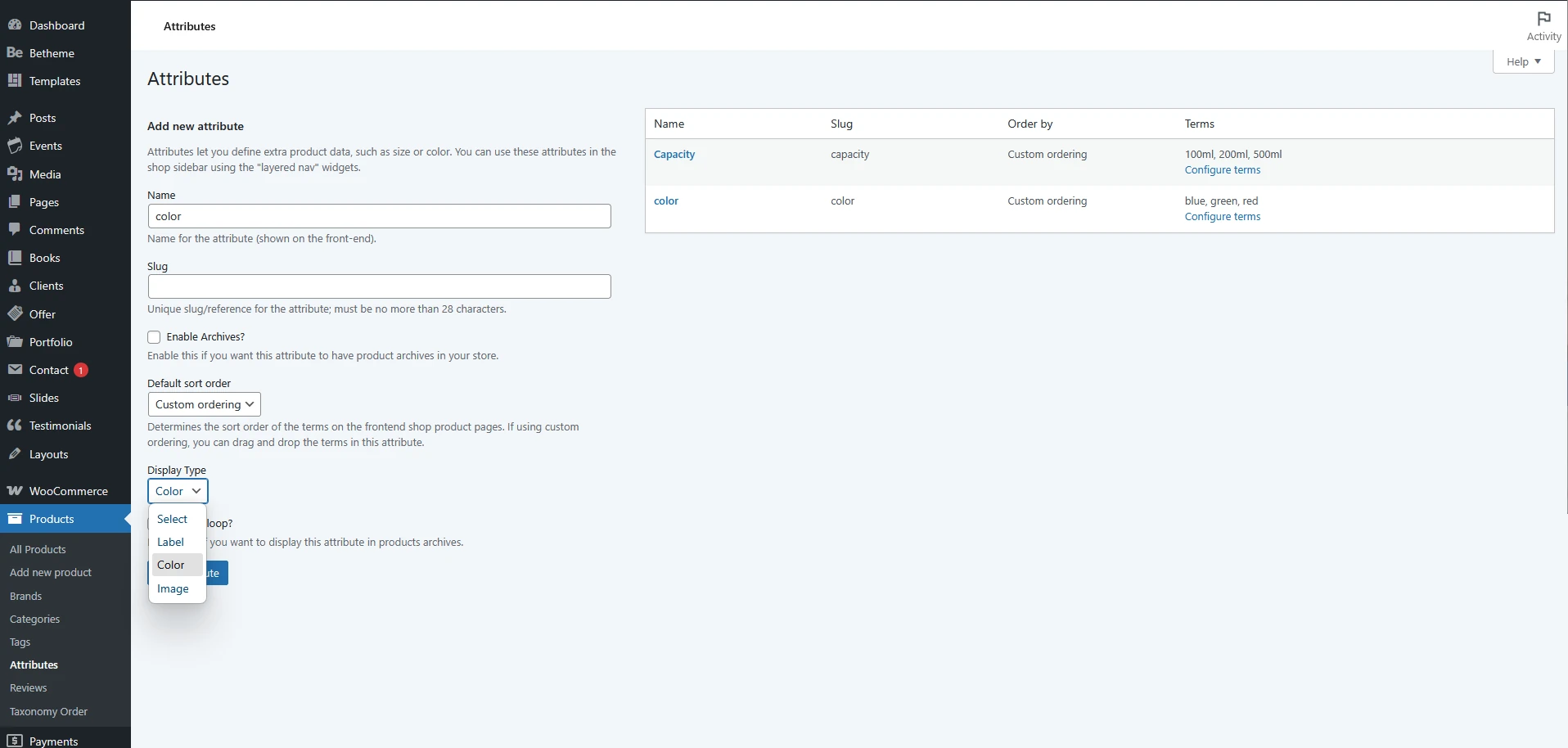
Navigate to Products > Attributes. When adding a new attribute (e.g., “Color,” “Capacity,” or “Cover”), pay attention to the Display Type field. Betheme allows you to choose from three additional formats beyond the standard “Select” type:
- Label: Perfect for sizes or capacities (e.g., 100ml, 200ml).
- Color: Displays clean color swatches using HEX palettes.
- Image: Allows you to upload a thumbnail image (great for fabric patterns or material types).
SEO Tip: Use slugs (URL-friendly names) that are readable for both users and Google bots (e.g., capacity instead of parameter-123).
Step 2: Configuring Terms
After creating the attribute, you must assign specific values to it. This is where the visual “magic” happens.
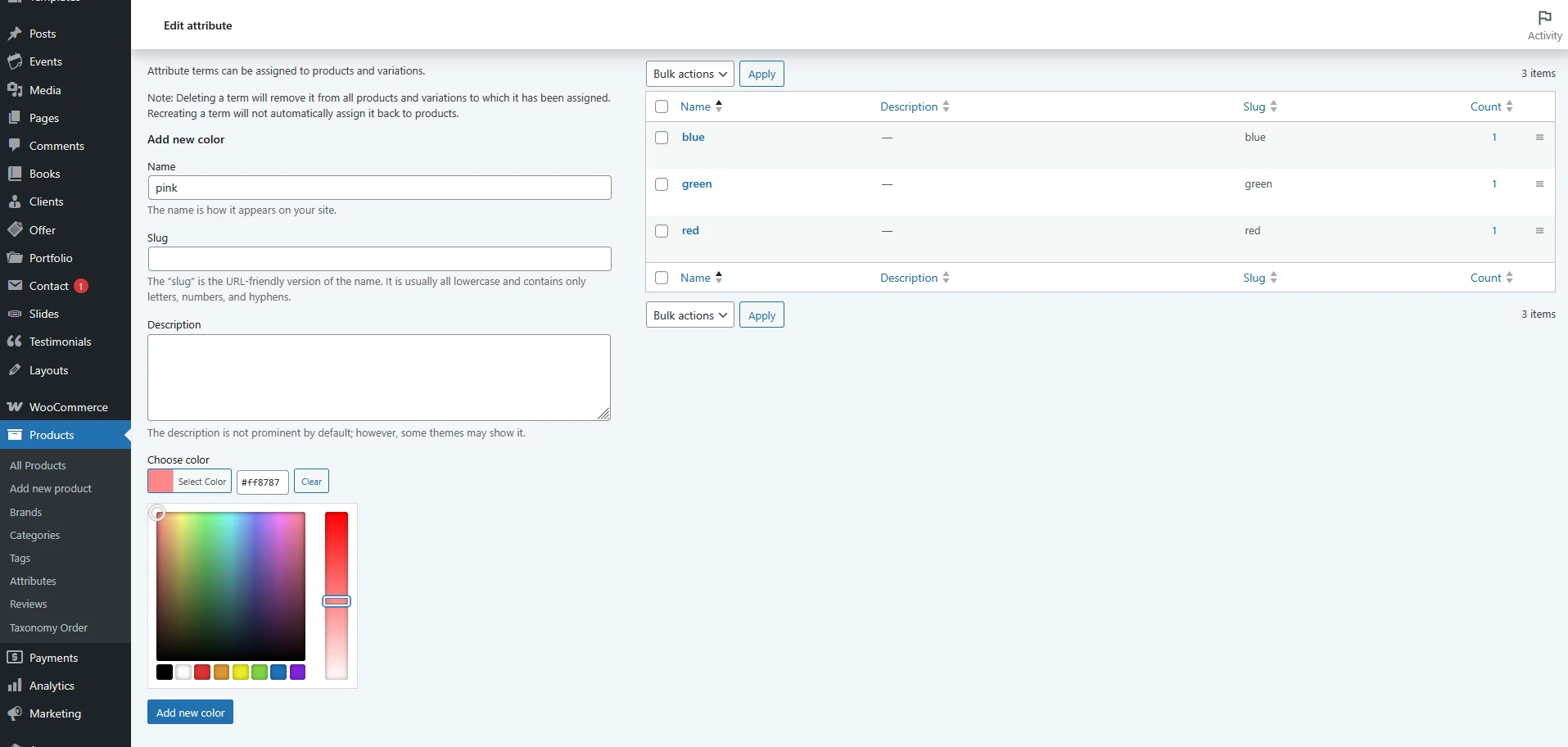
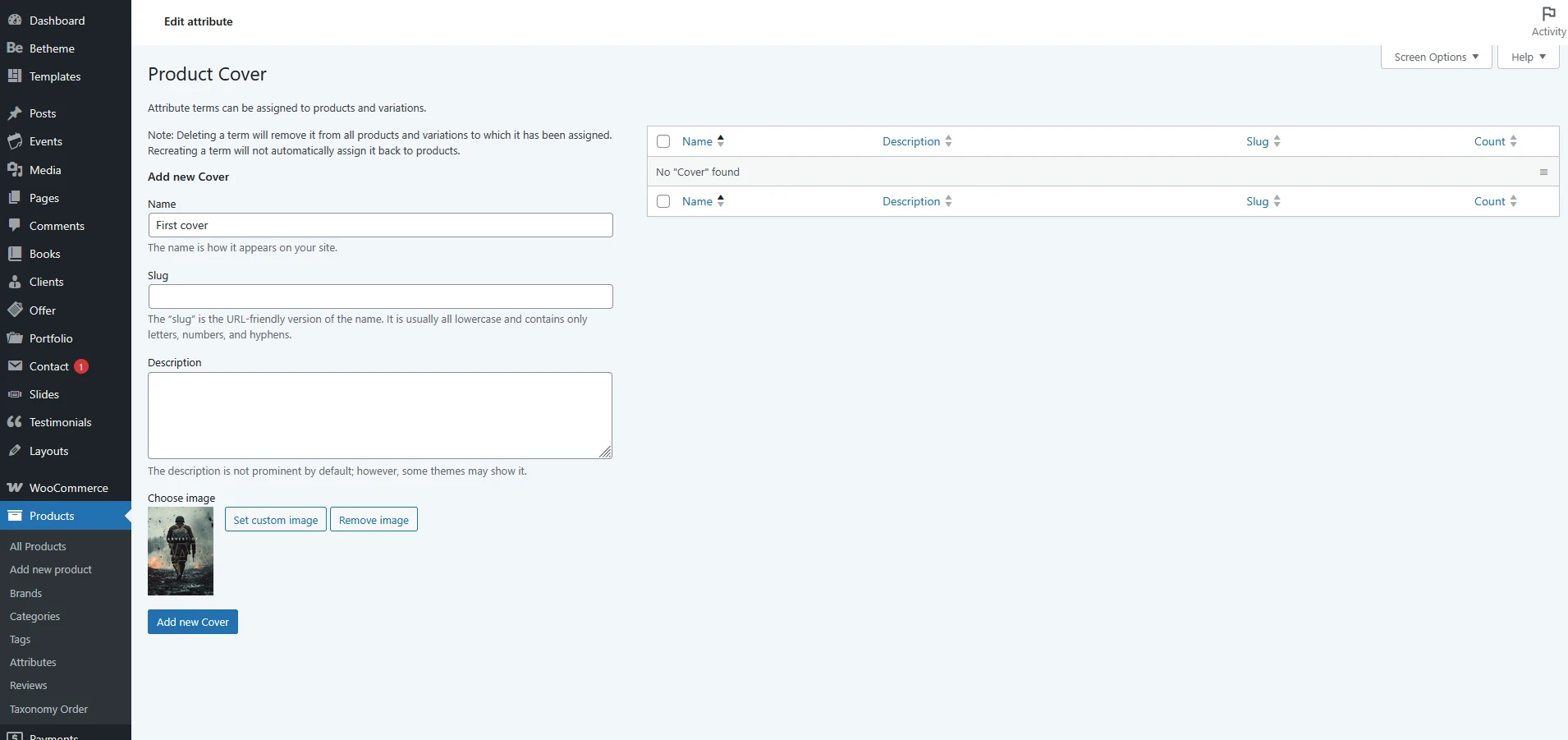
Click Configure terms next to your chosen attribute.When adding a new term (e.g., “Pink” for a color or “First cover” for an image), you will see additional options:
- For the Color type, use the built-in Color Picker to precisely define the shade.
- For the Image type, upload the graphic that best represents that specific variation.
Step 3: Implementing Variations in the Product
Once your attributes are ready, you need to link them to a specific product:
In the product editor, change the Product data to Variable product. In the Attributes tab, select the attribute you prepared earlier (e.g., “Capacity”) and check the Used for variations box. Go to the Variations tab and select Generate variations. The system will automatically create combinations for all available terms (e.g., 100ml, 200ml, 500ml). Don’t forget about the prices! WooCommerce will not display variations on the front end unless you assign them a price (even if the price is the same for all of them).
Step 4: The Final Result in Betheme
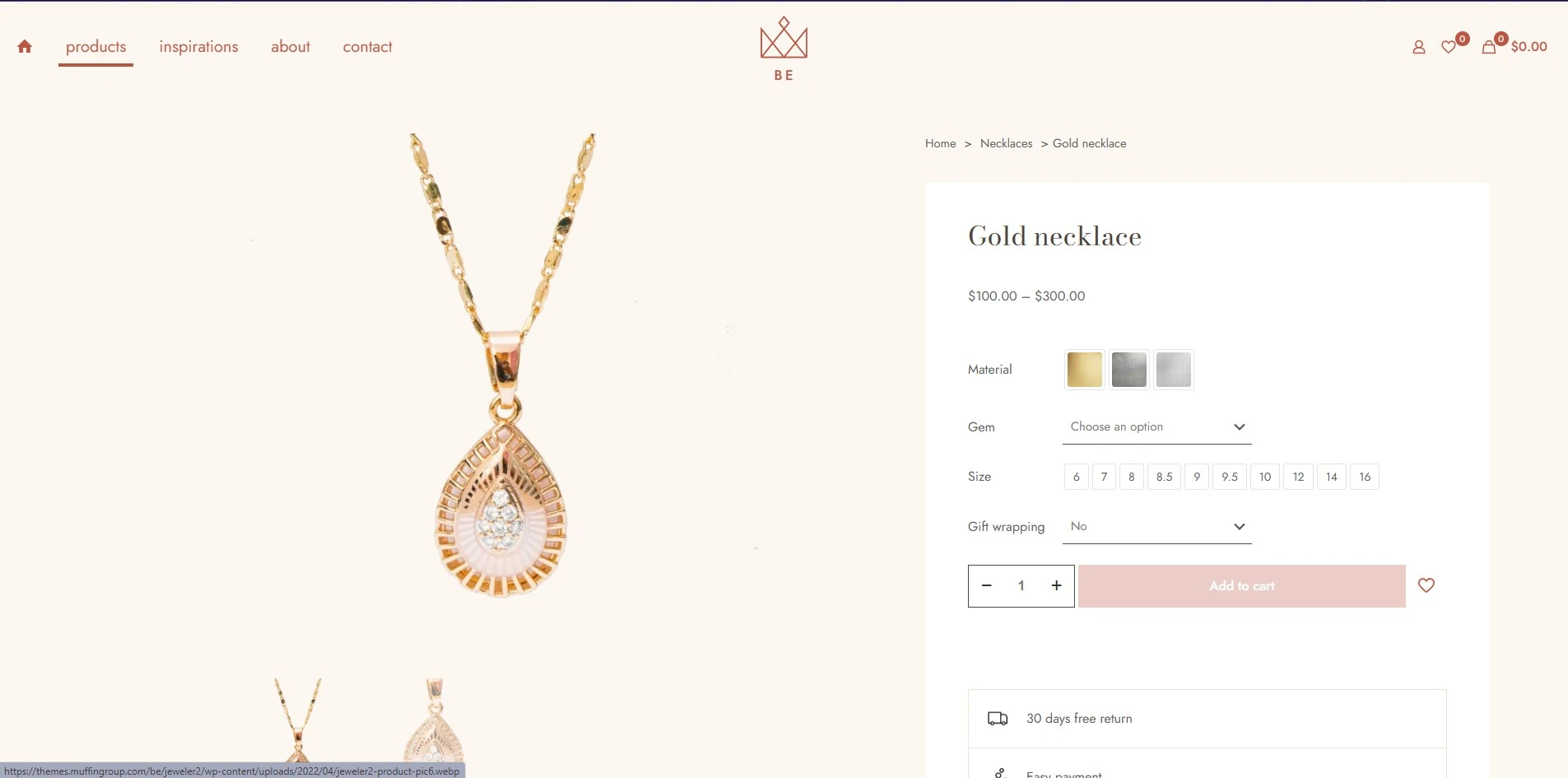
Thanks to native integration, BeTheme automatically renders your chosen display types.
Technical Advantage: Using BeTheme’s built-in mechanisms instead of heavy external plugins positively impacts the LCP (Largest Contentful Paint) metric, which is crucial for Core Web Vitals.
Summary and SEO Best Practices
Implementing visual variants is not just about aesthetics; it’s a strategy to increase sales. To fully exploit this feature:
- Mind your naming: Instead of “Variant 1,” use descriptive names that reflect the variation’s characteristic (e.g., “500ml”).
- Optimize images: Swatching thumbnails should be lightweight (e.g., WebP or SVG formats) to avoid slowing down product page load times.
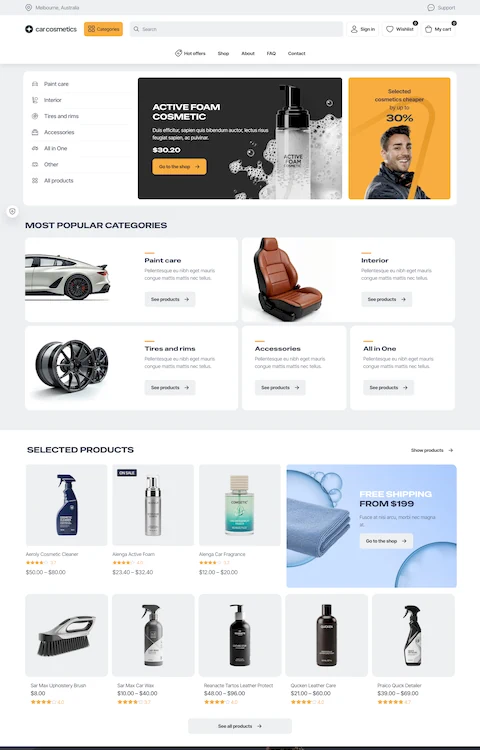
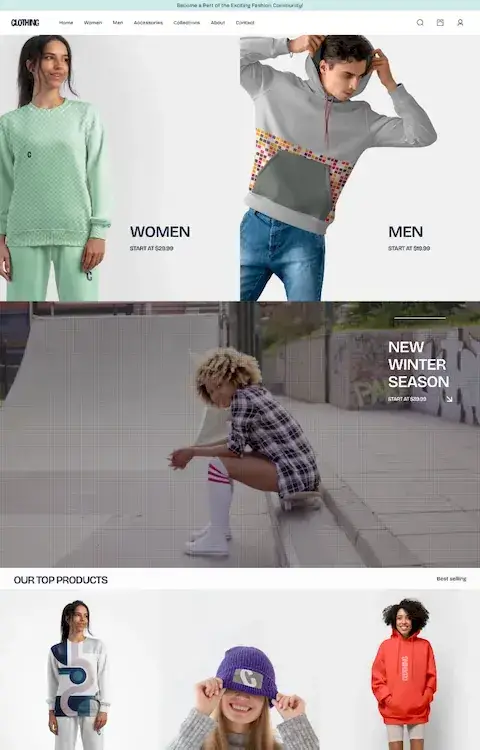
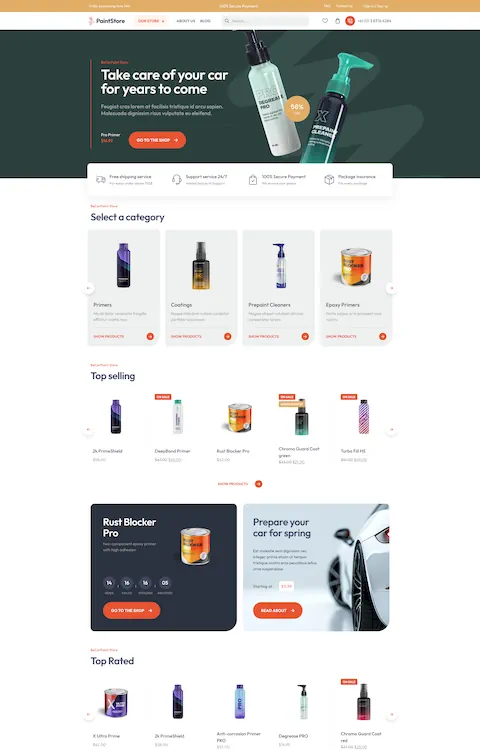
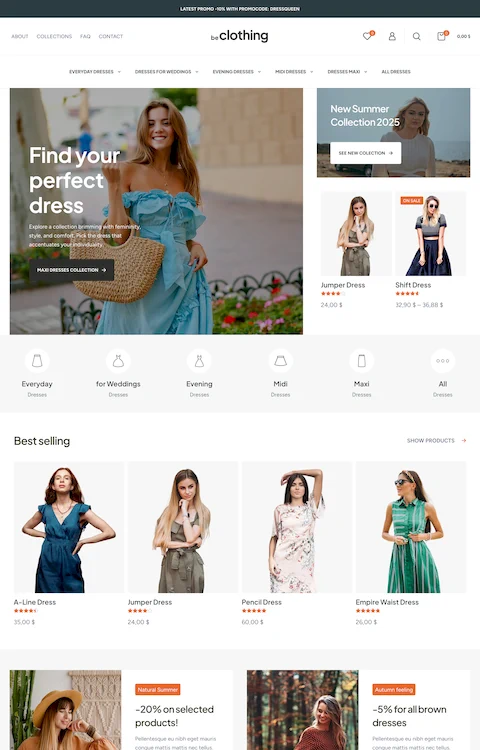
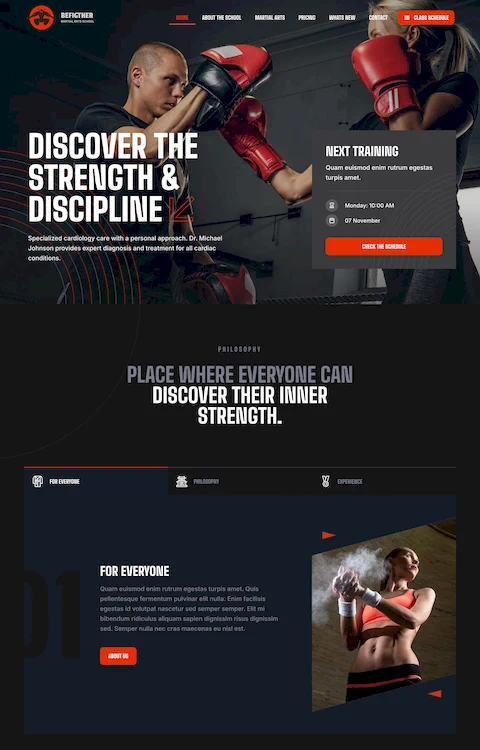
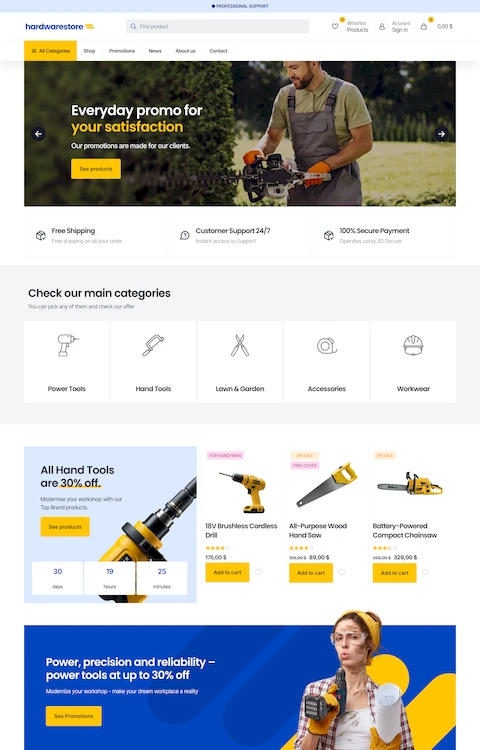
Check out example demos using Custom Variation Swatches: