

How to Embed Google Reviews on Your Website
February 28, 2026
The WooCommerce Side Cart: How to Set It Up Fast? (Guide)
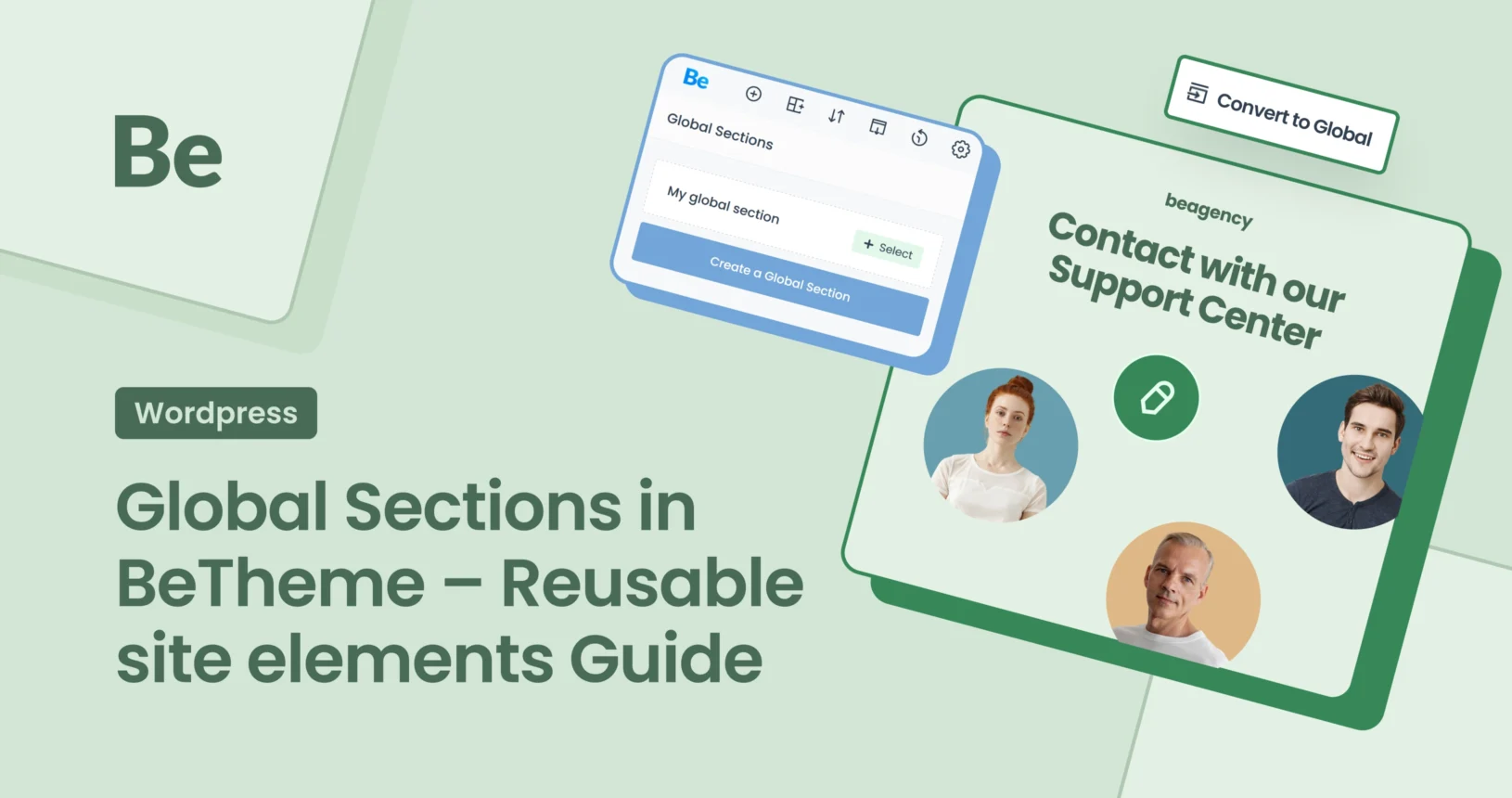
March 12, 2026BeTheme is one of the most comprehensive WordPress themes in existence, and the introduction of Global Sections has revolutionized the way designers build modern websites. Instead of duplicating the same elements across dozens of pages, Global Sections allow you to create a single “Source of Truth” that manages content sitewide. If you’re looking to streamline your web design process, mastering the Global Sections is an absolute must have.
Here is a comprehensive look at this tool—from core theory to practical implementation.
What are Global Sections in BeTheme?
Global Sections are modules built using BeBuilder that can be embedded in multiple locations across your site but edited in only one place. The logic is simple: any change made to the Global Section is instantly reflected everywhere that section is active.
Why is this a Game-changer?
- Massive Time Savings: Stop manually updating banners or footers on 50 different product pages. Update once, and you’re done.
- Visual Consistency: Ensure that margins, colors, and typography remain pixel-perfect across your entire brand.
- Operational Efficiency: Minimize the risk of typos or outdated info by controlling key elements from a single dashboard.
How it Works (Step-by-Step BeTheme Global Sections tutorial)
Using Global Sections is intuitive and baked directly into the BeTheme interface. You can create them using two distinct workflows:
Path 1: From the Dashboard (Pre-planned)
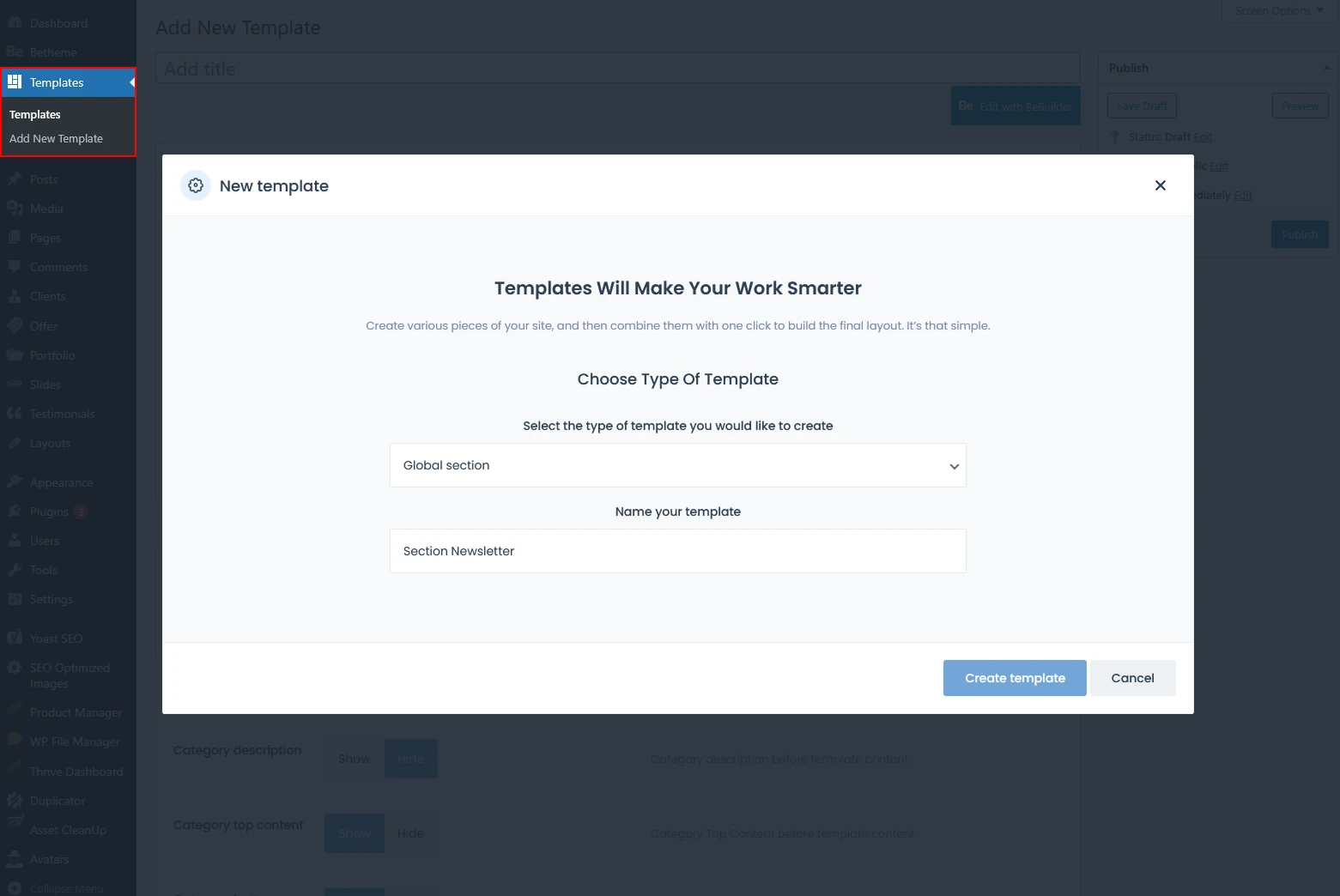
- Navigate to Templates > Add New Template.
- Select Global Section from the dropdown menu.
- Name it clearly (e.g., “Section – Testimonials”) and click Create Template.
- Design: Use BeBuilder to craft your layout (e.g., a newsletter signup or a review slider).
Path 2: Global Section Conversion On-the-Fly
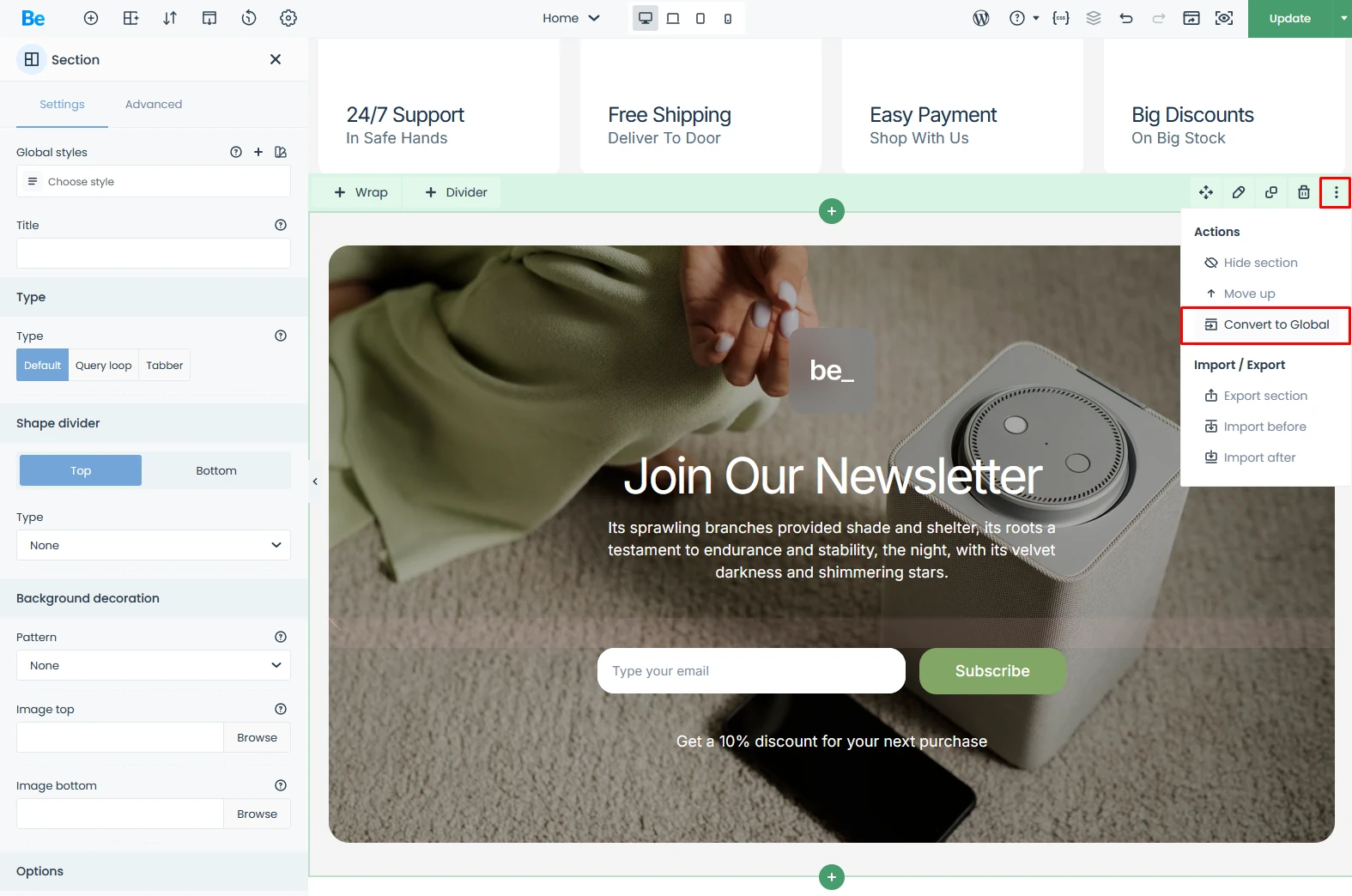
If you’ve already built a section you love inside BeBuilder, you can convert it instantly into global section by following these three steps:
- Click the three dots on the section toolbar.
- Select “Convert to Global.”
- Give it a name and hit Save. It is now available to use sitewide.
Implementation – How to Add a Global Section to Your Page
Once you’ve designed your Global Section, dropping it onto any subpage takes literally seconds:
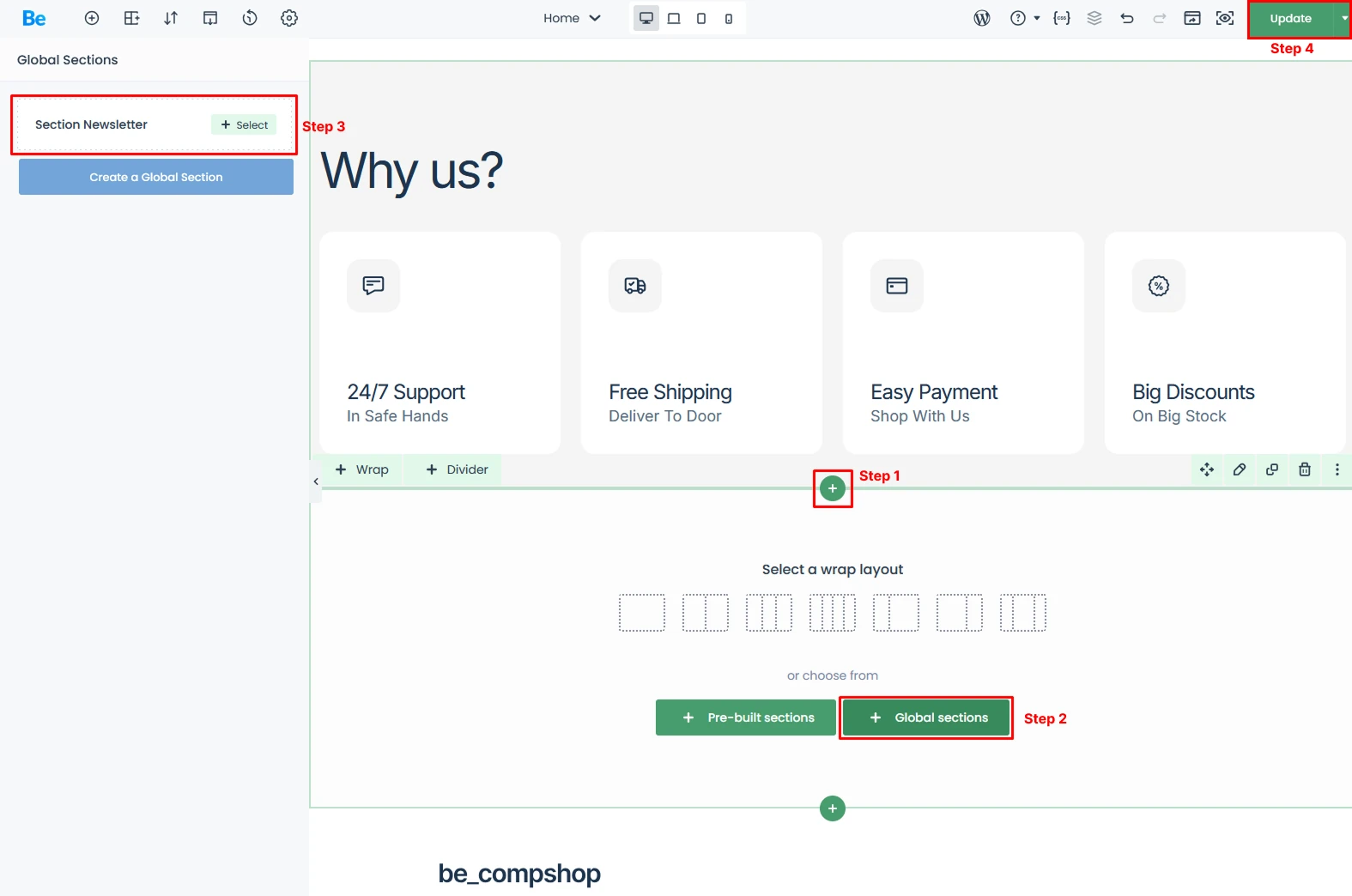
- Add a New Section: Inside the BeBuilder editor, click the “Add Section” icon exactly where you want the content to appear.
- Select the Source: Look below the standard layout grid (where the wrap layout options are) and click the “+ Global Sections” button.
- Choose Your Global Section Template: Pick the specific template you need from your saved list (e.g., “Section Newsletter “).
- You’re All Set! Hit Update and refresh your live preview to see the section in action.
Real-World Use Cases of Global Sections
Where do Global Sections shine the brightest? Here are four “in the trenches” scenarios that could be handy for you:
1. Custom Footers & Micro-Footers
While BeTheme includes a dedicated Footer Builder, Global Sections take your design finesse to the next level. They allow you to build hyper-specific footers for different product categories or a stripped-back ‘mini-footer’ for high-conversion sales landing pages. By leveraging Conditional Logic, you can deploy these automatically in the right spots—without the clutter of managing dozens of separate files. It’s all the power you need, kept in one clean, organized workflow.
2. Call to Action (CTA) Global Sections
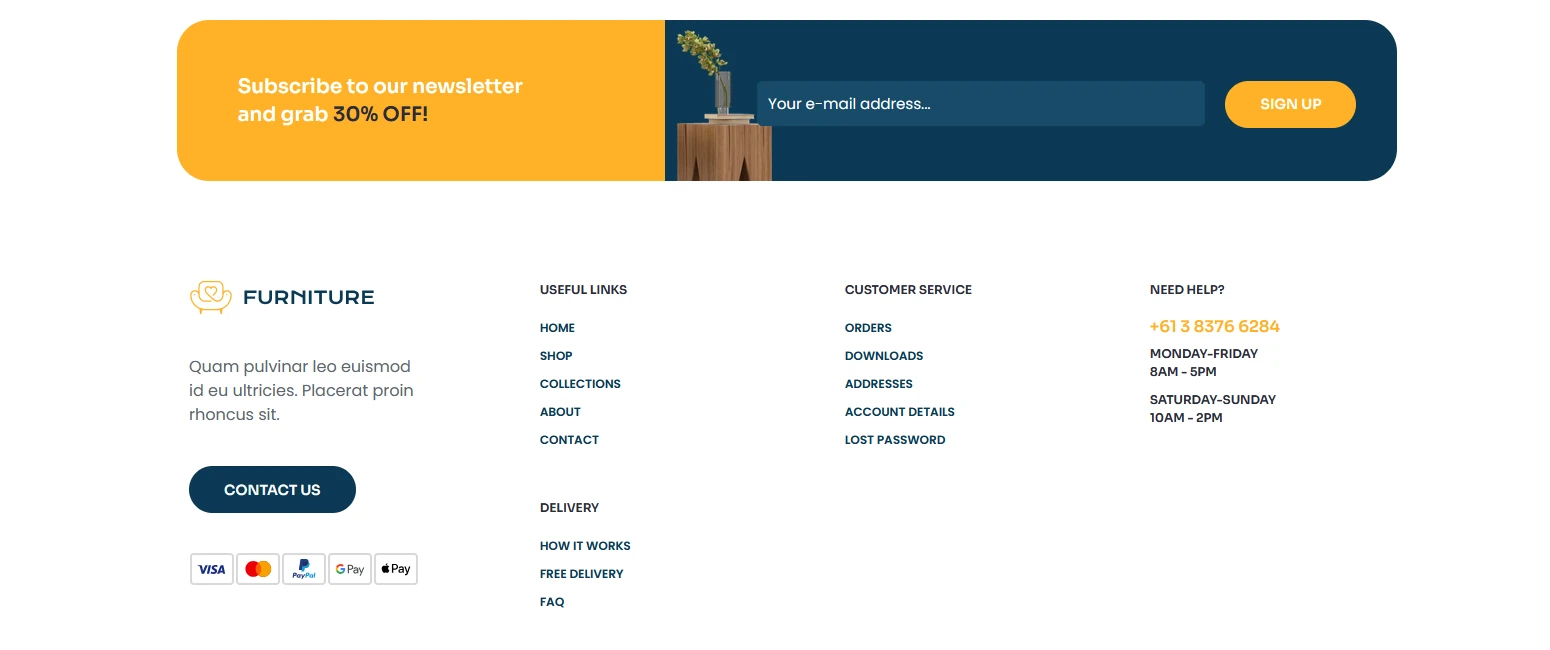
Imagine you’re running a promotion. You want a banner at the bottom of every blog post and landing page that says “Sign up for our webinar!” or “Join our newsletter and grab a discount.”
Instead of doing it manually, you create a Global Section with your form. When the webinar is over, you just edit that one section, swap the text to “Download our E-book,” and you’re done. It literally takes 30 seconds.

3. Global Section with Testimonials
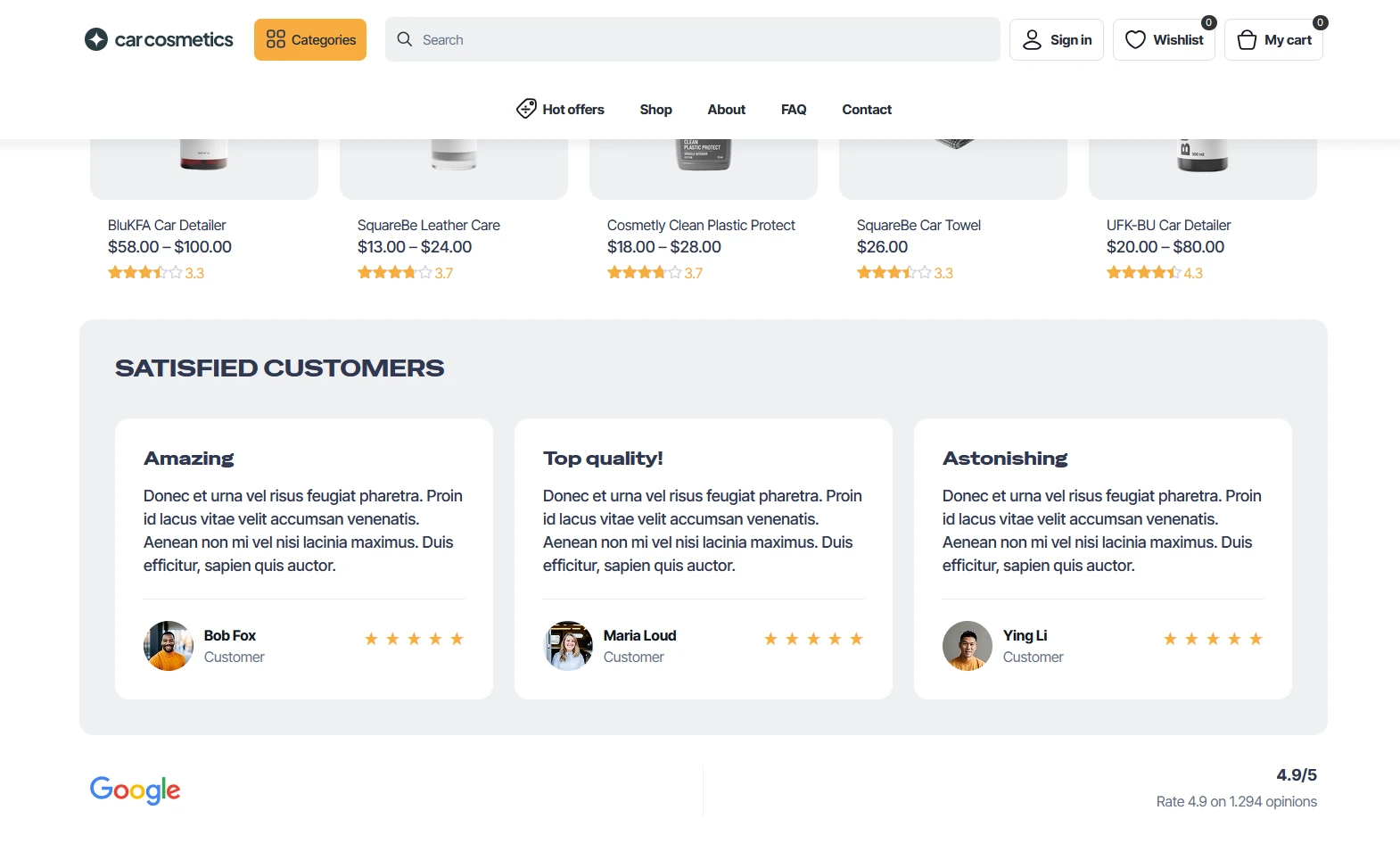
Customer reviews are all about building social proof. Instead of copying a testimonial module onto every single service page, just drop it into a Global Section. When a glowing new review comes in, you update it in one place, and it automatically syncs across your entire site.
4. Service or Category Showcases
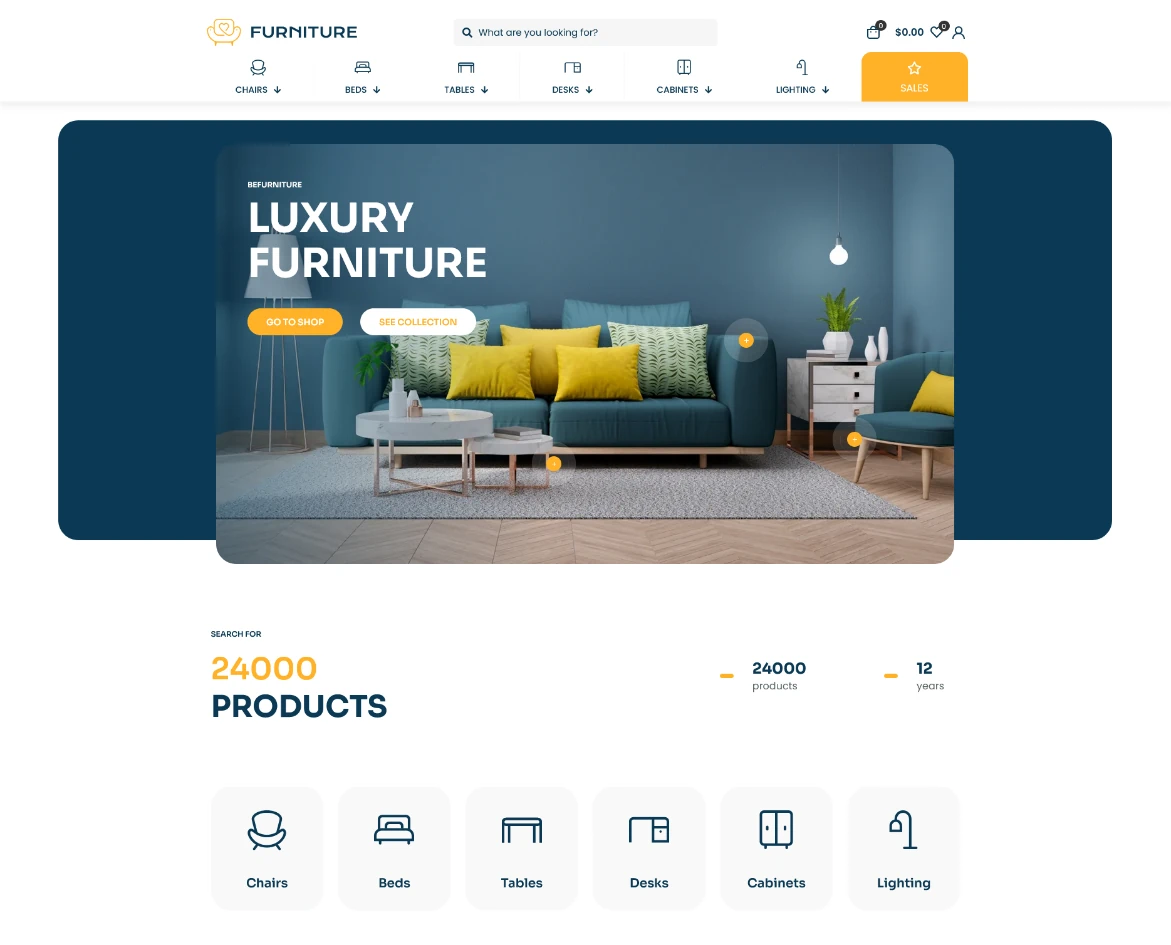
Global Sections make it incredibly easy to highlight your store’s key selling points—like fast shipping, 24/7 support, or secure payments—or to display beautifully styled category links. You can then trigger these sections to appear anywhere on your subpages.
Advanced Pro-Tips: Display Conditions
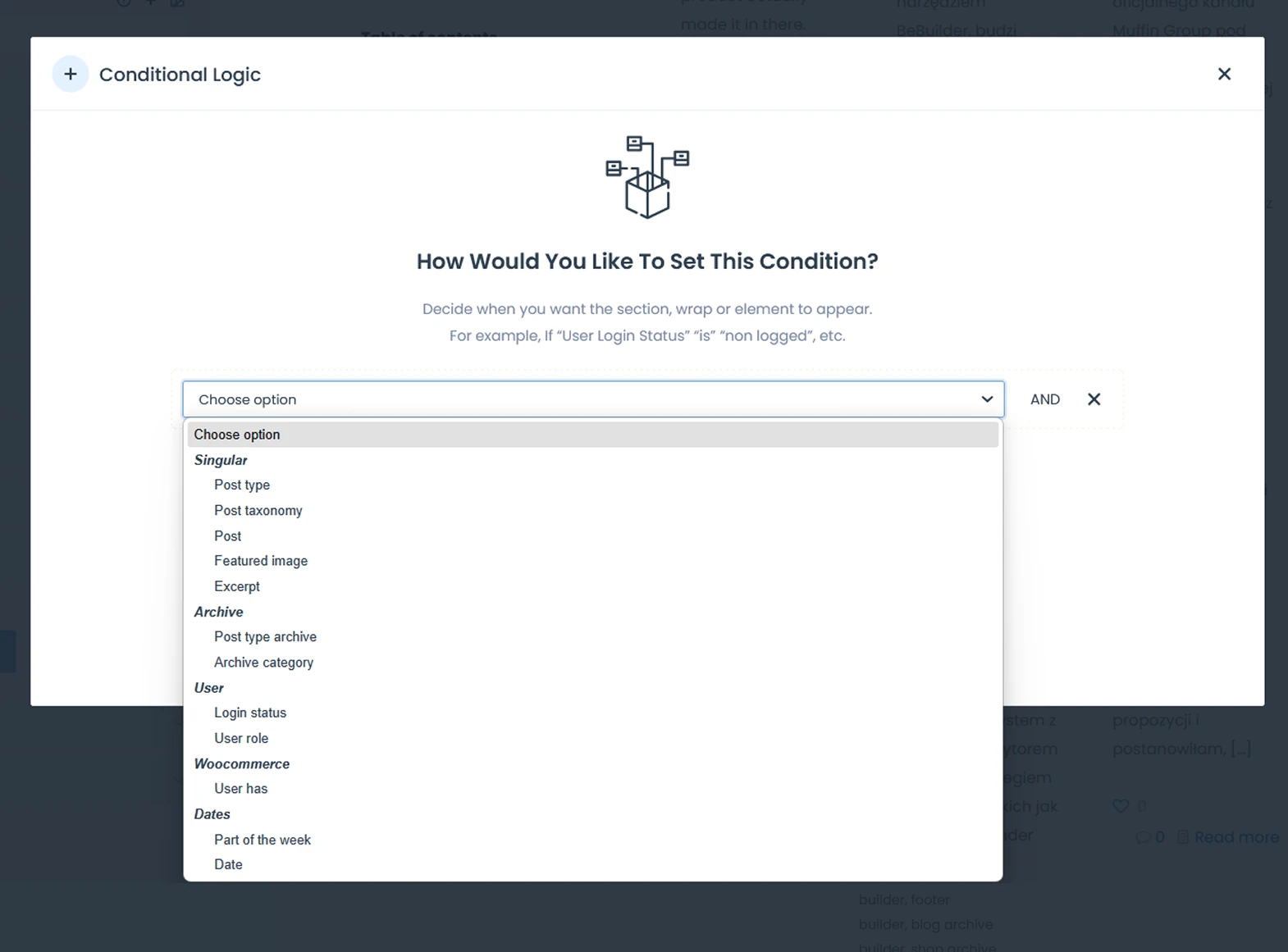
BeTheme takes it a step further with Conditions. You can define exactly where, when, or for whom a Global Section should automatically appear:
- Only within a specific post category.
- Exclusively on WooCommerce product pages.
- Only for logged-in users.
- Based on a specific schedule or date.
This turns your website into a “smart organism” that serves contextually relevant content to your users based on your strategy.
Summary
Global Sections in BeTheme are a game-changer for anyone who values their time and wants to build a professional site architecture. It’s the shift from just “building pages” to “managing a design system.”
Pro-tip: Success is all about planning. Before you build your next subpage, ask yourself: “Will I need this element somewhere else later?” If the answer is yes, make it a Global Section. But don’t overthink it—you can convert any standard section into a Global one at any time and start reusing it instantly.
If this BeTheme Global Sections – Guide is not enough you can watch Youtube Video with some explanation over them. Or try BeTheme Academy – the part about Global Sections is at 3.3 Building Homepage.