

Modern Church Website Templates To Grow Your Ministry
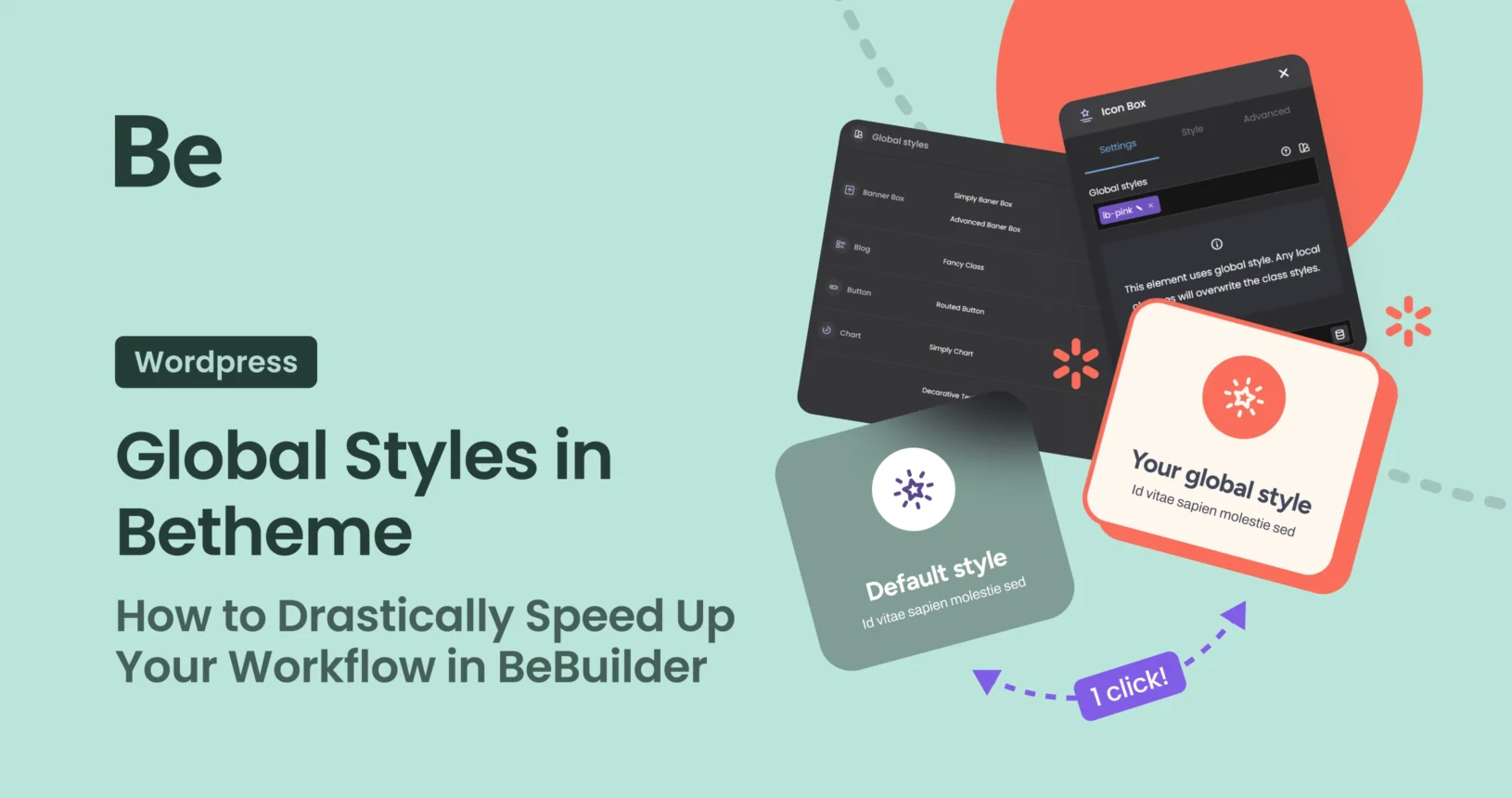
March 23, 2026Efficiency in WordPress design isn’t just about experience; it’s primarily about the clever use of available tools. If your projects involve repetitive elements—such as Pricing Item, Chart or, Icon Box—manually editing each one is a waste of time and risks compromising visual consistency. Global styles come to the rescue.
Global styles in Betheme, allow for mass design management from a single location. In this guide, you’ll learn how to implement this workflow in BeBuilder and why it’s crucial for your site’s performance.
What are Global Styles and Why Should You Use Them?
Global styles are a mechanism that allows you to save the visual parameters of a specific element and assign them to other instances of the same type across your entire website. Instead of editing 20 pricing sections individually, you change a single parameter in the global style, and BeBuilder automatically updates all linked elements.
Key Benefits:
- Reductions in work time by 40-60% for large-scale websites.
- Perfect brand consistency (identical colors, typography, and margins).
- Easier technical maintenance—global changes don’t require clicking through every subpage.
How to Create and Implement a Global Style in BeBuilder?
The process is intuitive but requires an understanding of the style hierarchy. Let’s look at it using the Pricing Item element as an example.
Preparing the Base Element
Start by adding a repeatable element to your page. Configure it according to your design—set colors, fonts, shadows, and margins in the “Style” and “Advanced” tabs.
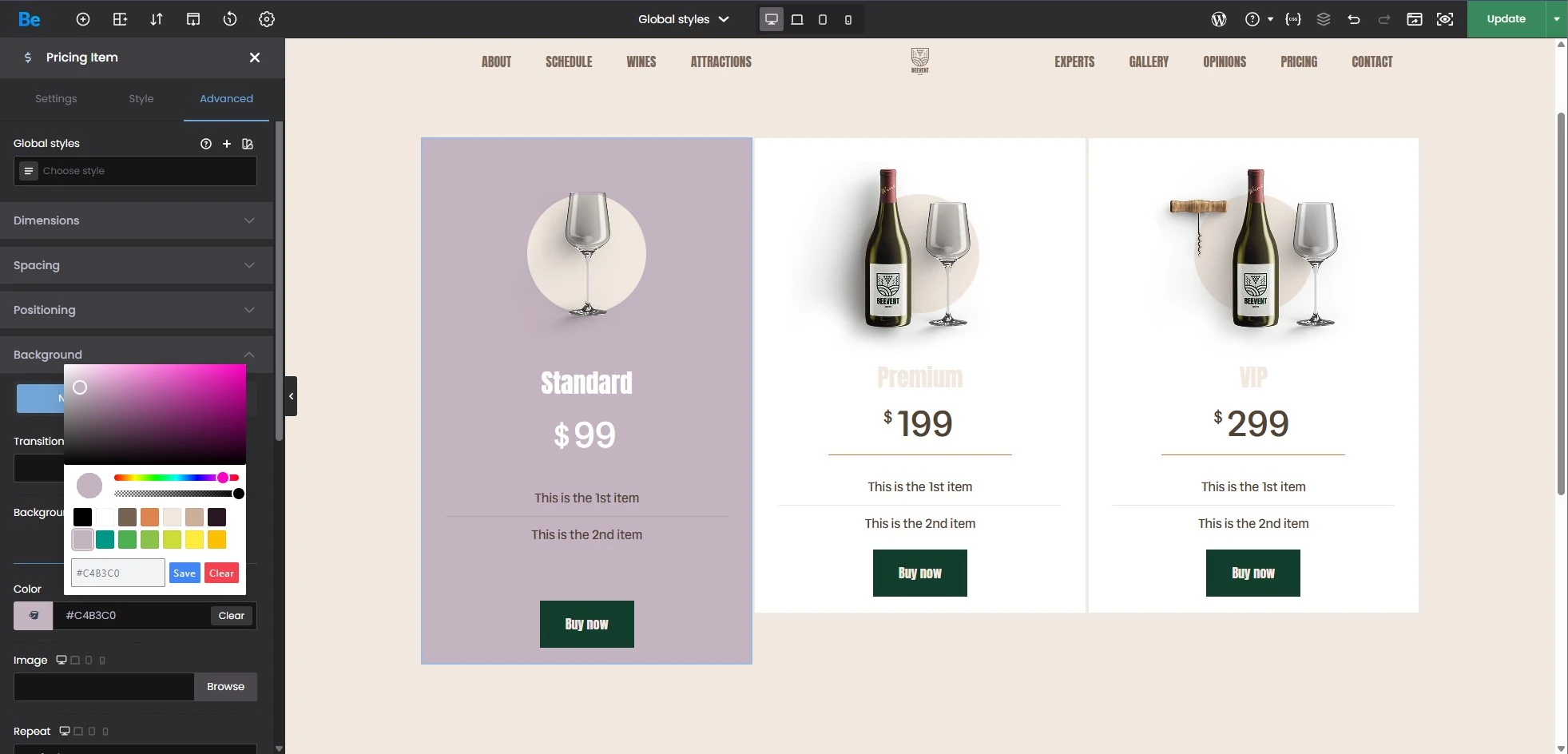
Once you’ve achieved the desired effect, look at the sidebar. Next to the Global styles section title, you’ll find a plus icon (+). Click it to initiate the creation of a template.
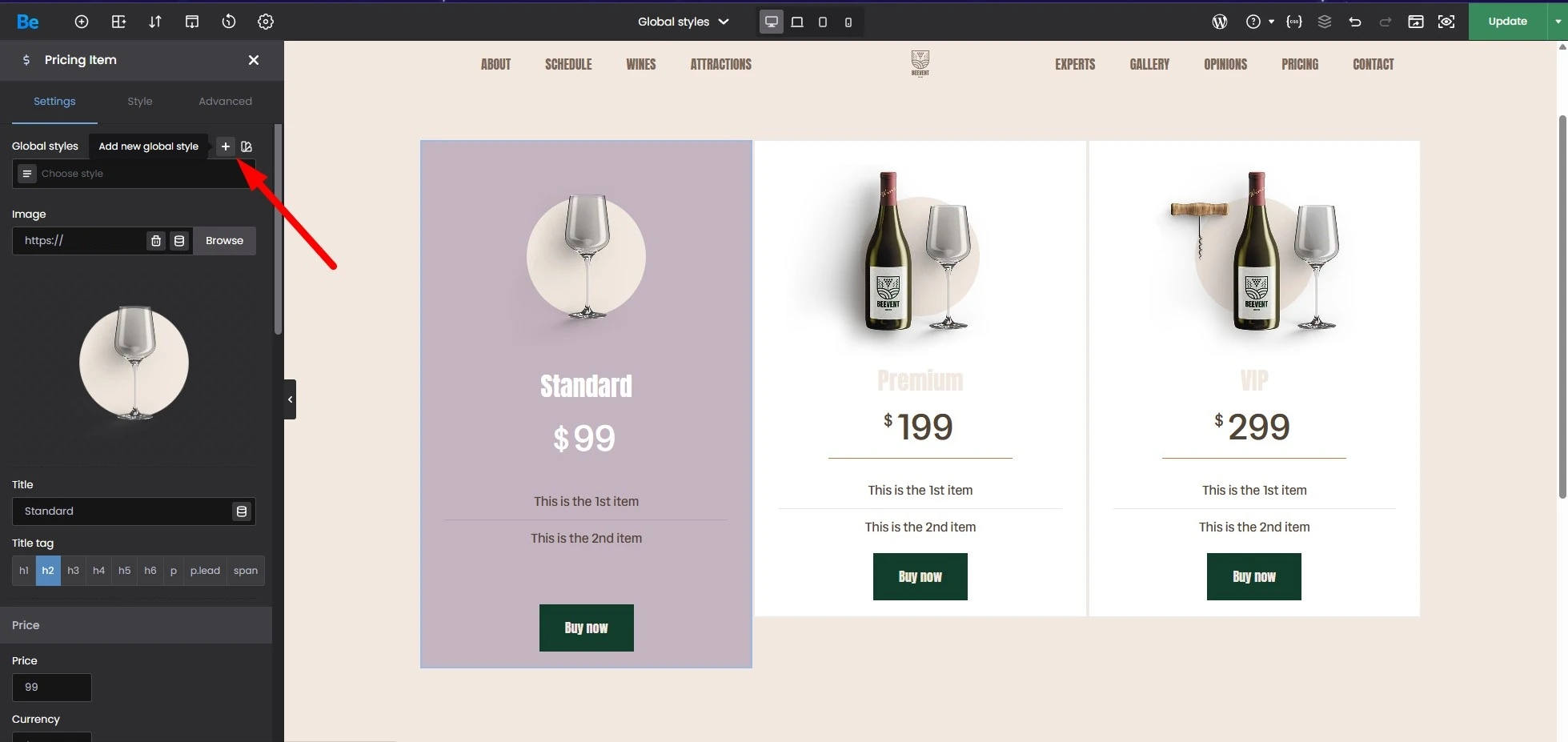
Selecting Properties (Global Styles Modal)
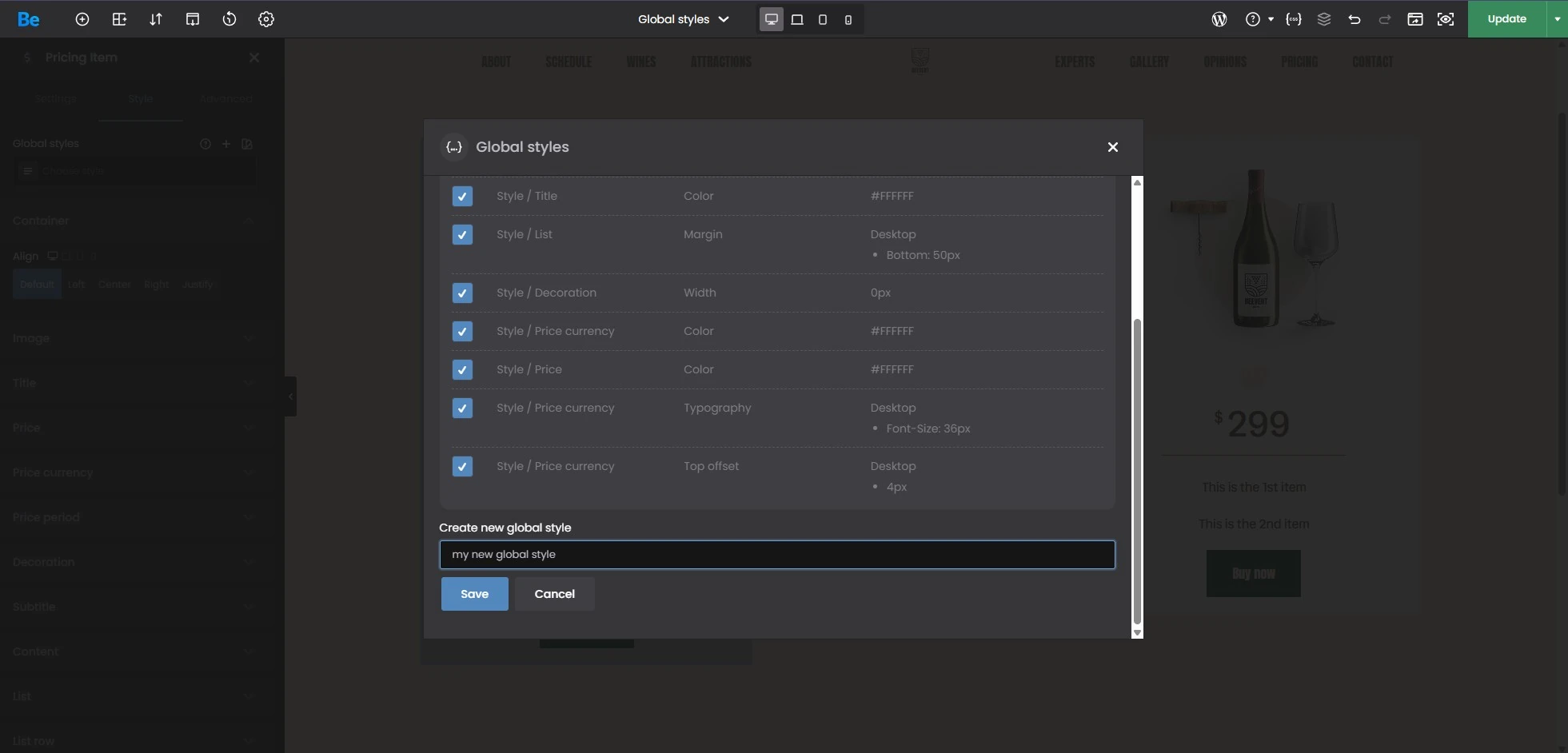
After clicking the plus icon, a modal window will open. This is where you decide which features should be “global.”
Checkboxes: All parameters (e.g., title color, list margins, currency typography) that should be shared across elements are checked by default.Personalization: If you want a specific parameter (e.g., a unique background for one of the boxes) to remain unique, simply uncheck the box next to that option.
Managing Priorities (Local vs. Global)
Important technical note: In Betheme, local styles (set directly within the element) take precedence over global styles. If an element has local styles overridden, those will be visible instead of the ones defined globally. This allows for flexibility—for instance, highlighting one element in a series without breaking the consistency of the others.
Editing and Mass Updates
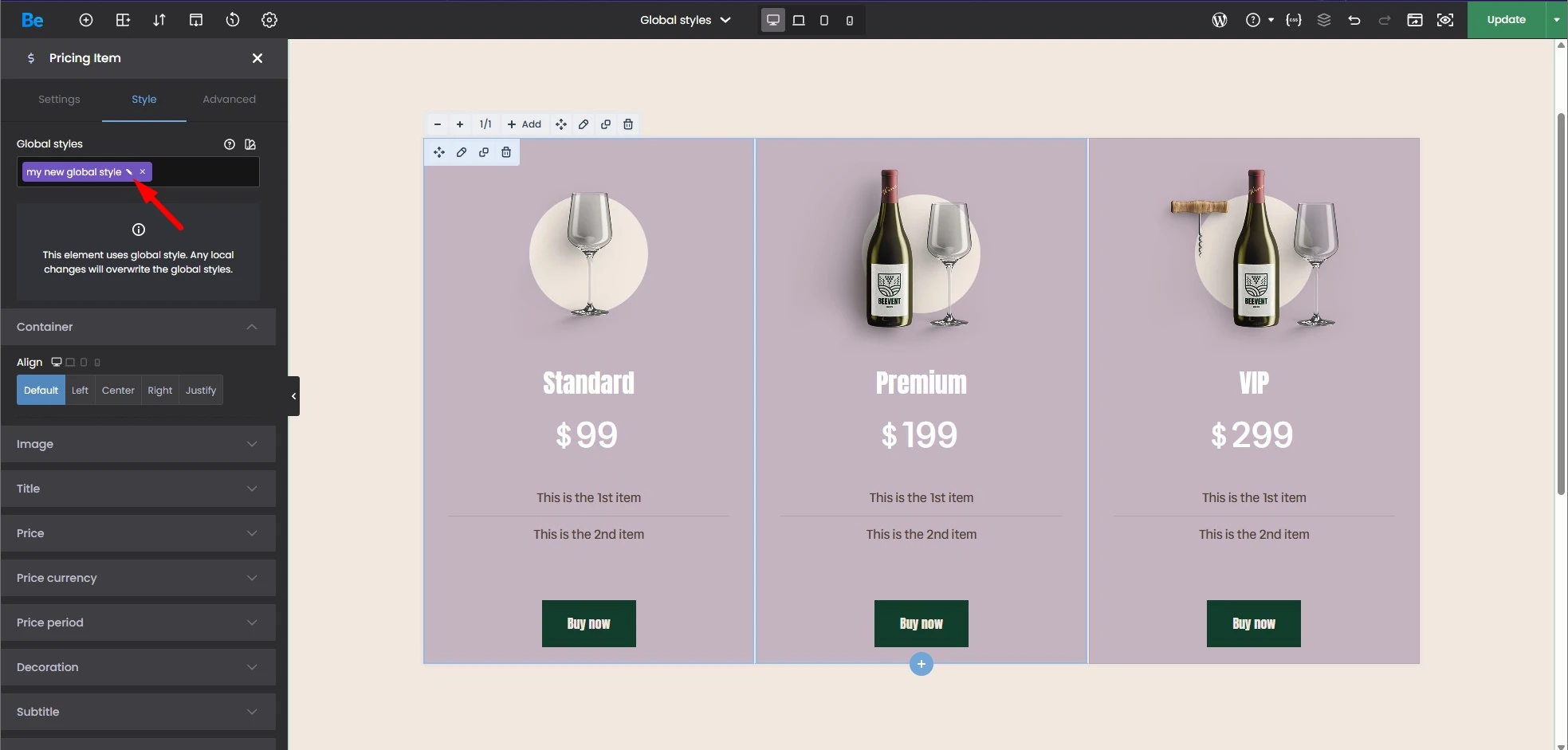
When editing another element of the same type, clicking on the Global Style field will bring up a list of your created Global Styles. To assign a style, simply select it from the list.
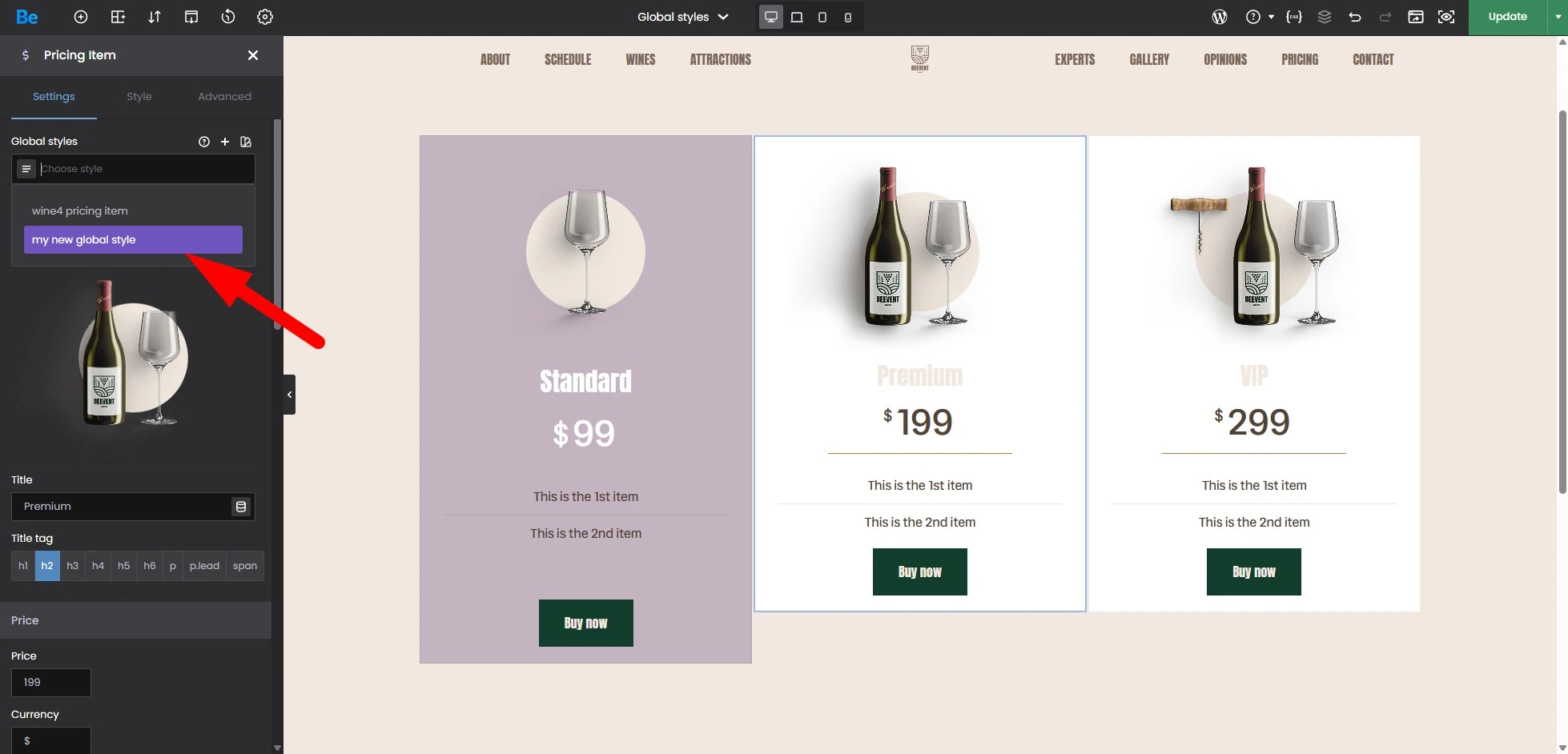
Once you’ve assigned a new global style to elements on the page, editing them becomes incredibly simple.
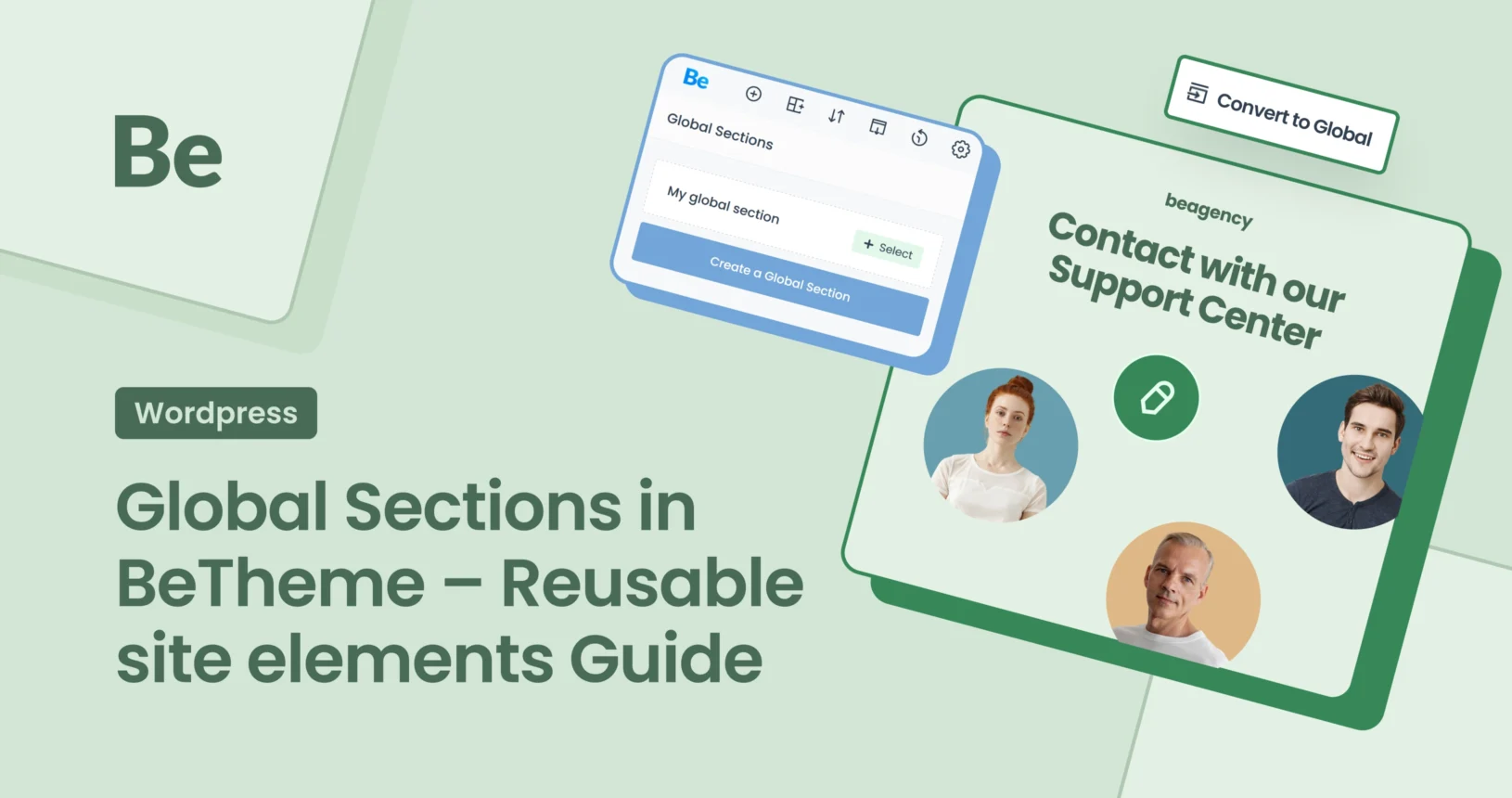
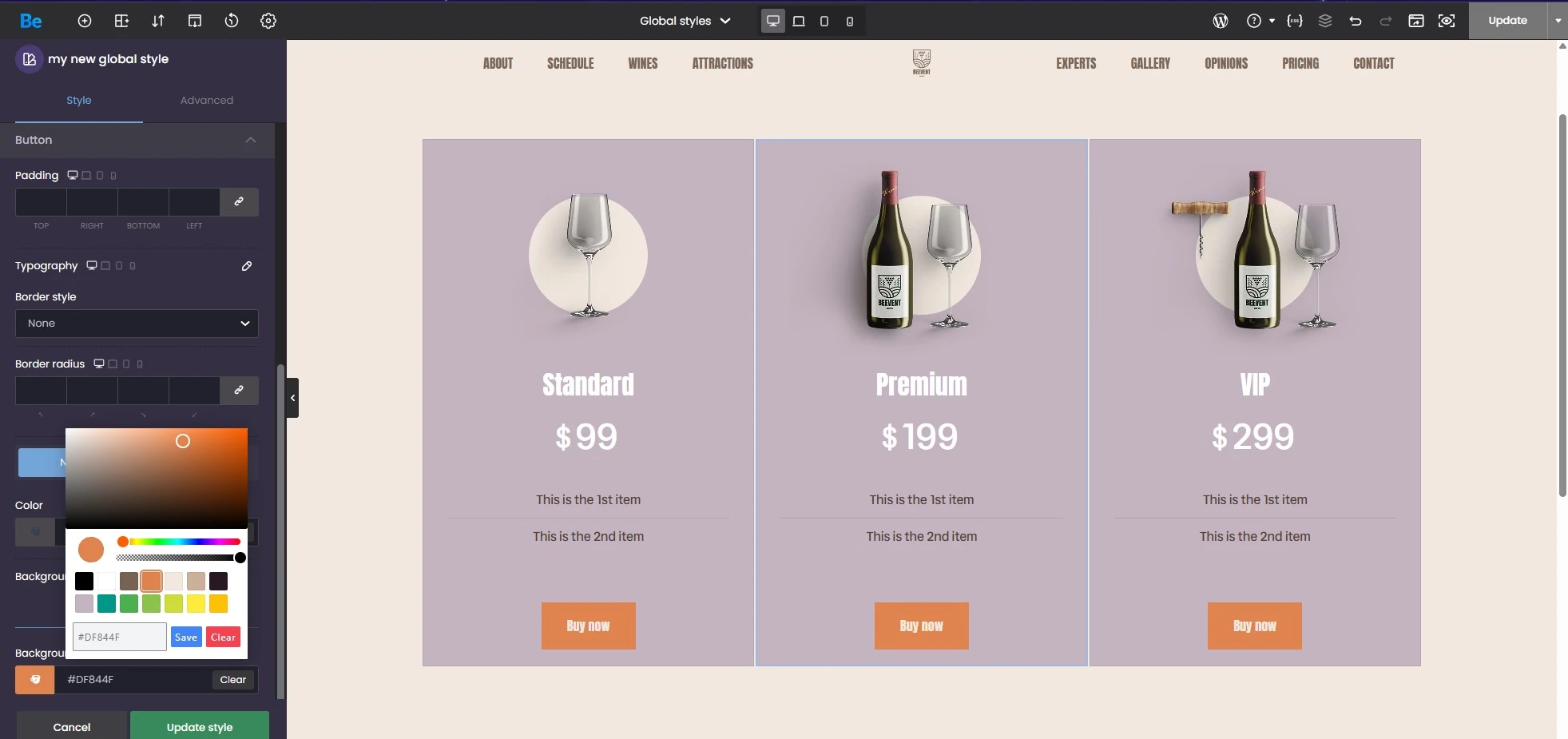
By clicking the edit icon (the pencil), you enter global editing mode. Any change to a button color or font size in this mode will be immediately reflected across all elements using that style. This is a powerful tool for rebranding or Conversion Rate Optimization (CRO).
Advanced Management: Lists, Export, and Import
Betheme doesn’t limit you to just one domain. Your work can be scaled.
Managing the Style List
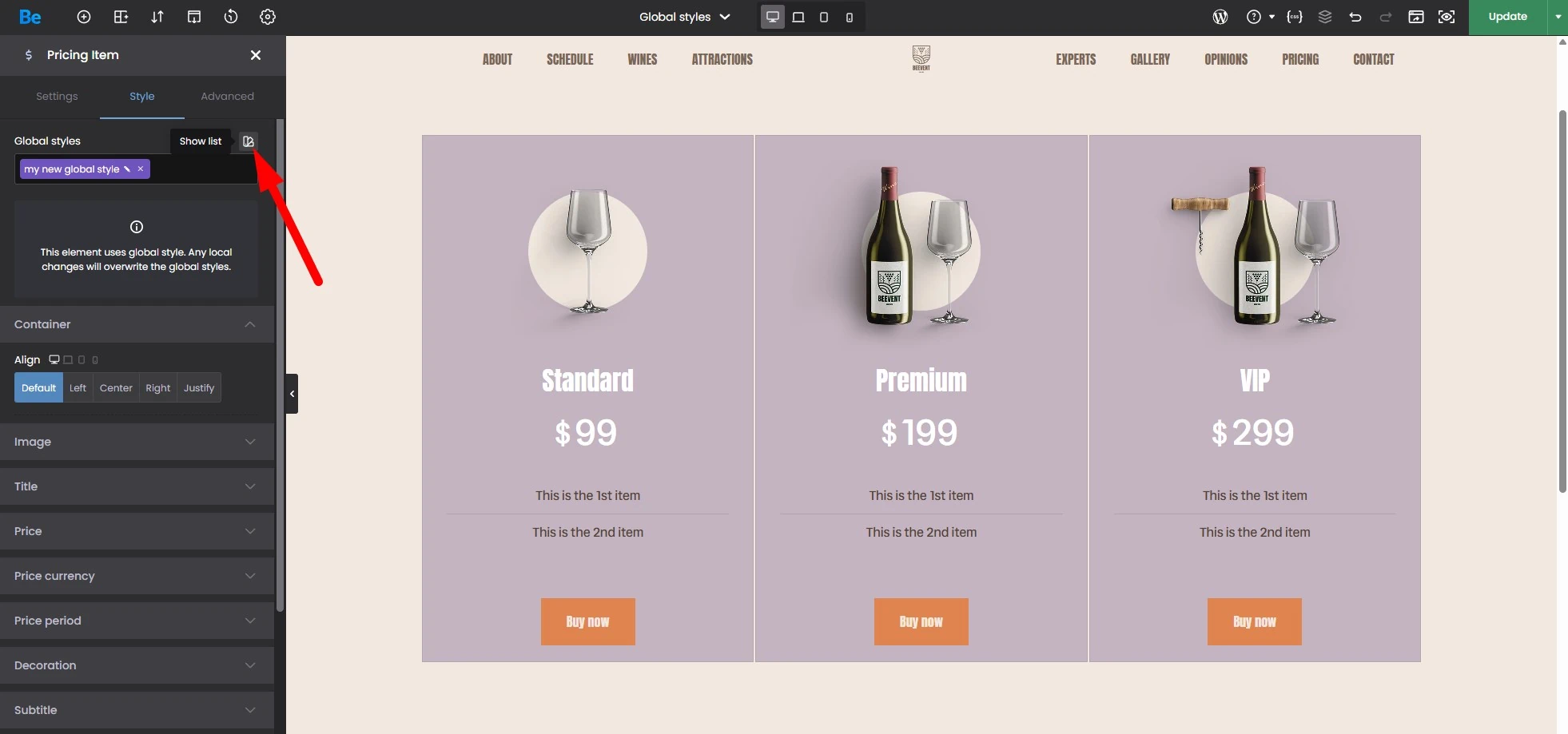
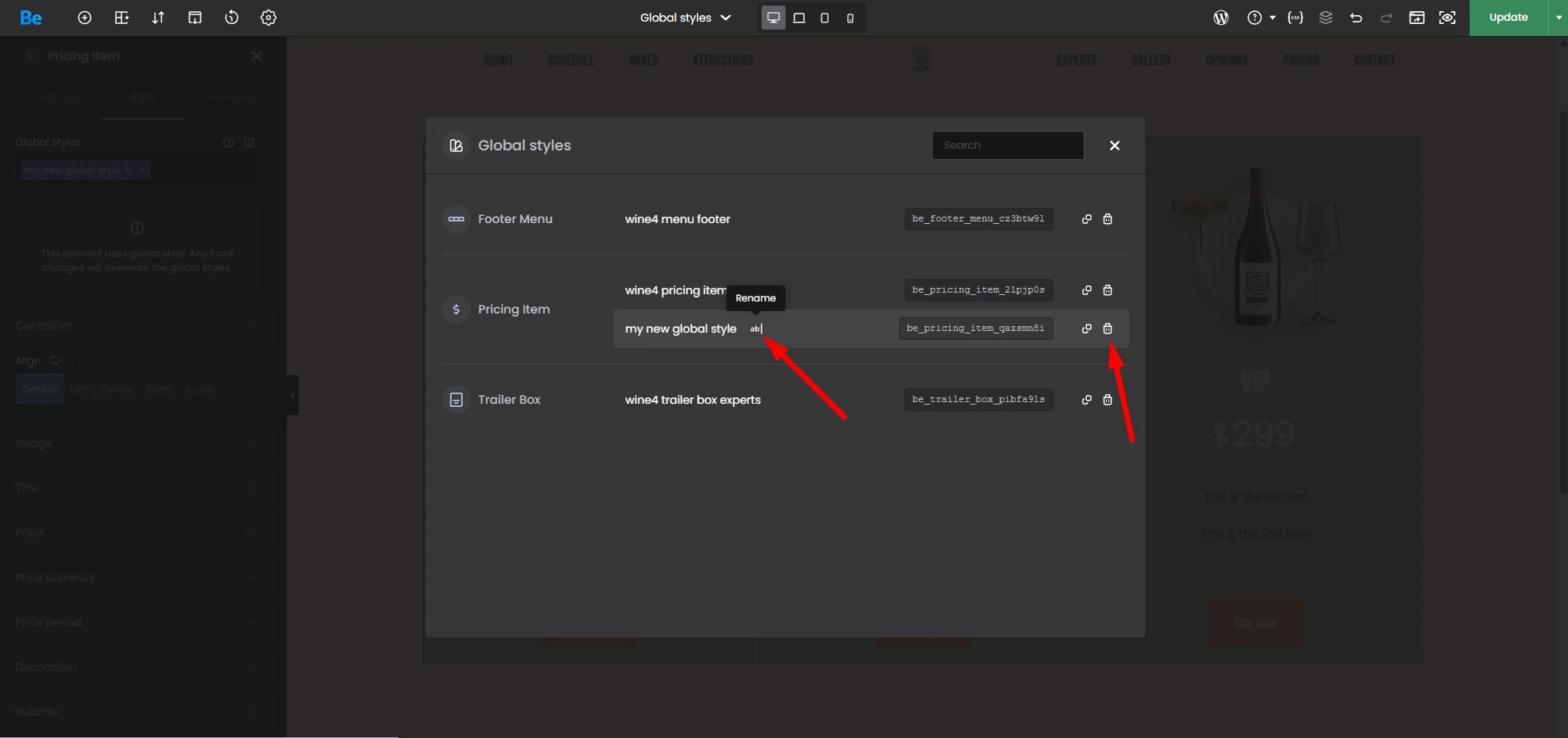
If you want to rename a style to something more descriptive (e.g., “Pricing – Promotion”) or remove unused templates, use the “Show list” icon (the layers/documents icon). There, you’ll find a search tool as well as options to edit names and delete styles, helping you maintain project order (the Clean Code principle).
Export and Import
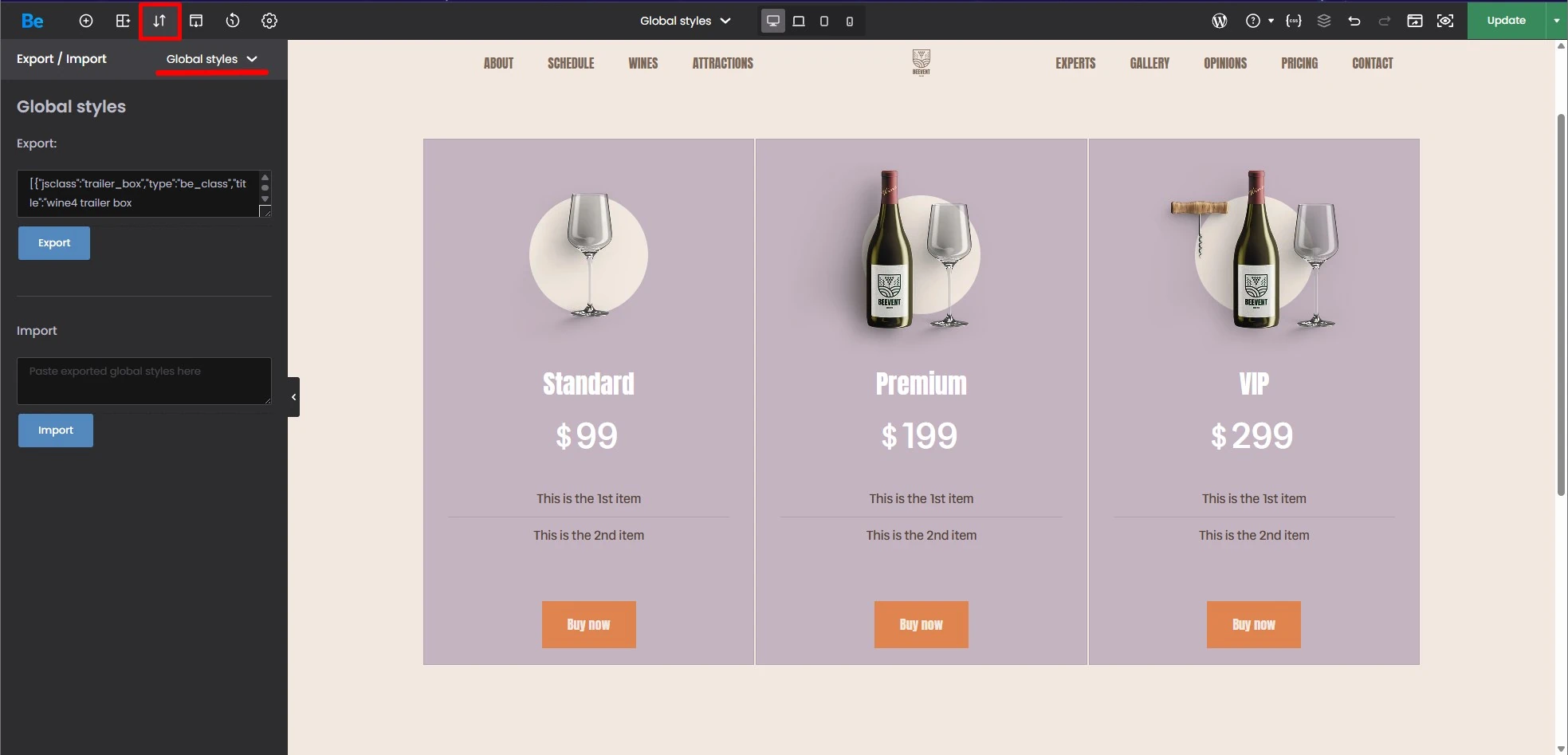
If you’ve perfected the design for specific sections, wraps, or elements, you can transfer it to another project based on Betheme. In the Export / Import tab within BeBuilder, you’ll find a dedicated section for global styles. Copy the generated JSON code and paste it into the new site. This is the best way to build your own library of ready-to-use components (UI Kit).
Summary
Global styles in Betheme are a feature that separates amateurs from professional WordPress developers. Thanks to them, your site is easier to maintain, the code remains cleaner, and you save hours of tedious, repetitive work.
Visual consistency and the ability to quickly improve readability (e.g., increasing font contrast globally) directly impact User Experience (UX) metrics and Core Web Vitals, which are key ranking factors in Google.