

How to build a WordPress website from zero to live?
April 9, 2026
How to Choose the Best Affordable Website Template for Small Business?
April 9, 2026If you recently launched your site using a small business website template and now want to make a few tweaks, you’re in the right place. Learning how to edit HTML in WordPress doesn’t require a developer or a coding background. Thanks to the built-in block editor, visual page builders, and specialized plugins, you can modify HTML directly from your dashboard. In this guide, we’ll walk you through every method so you can make changes with confidence.
Can you edit HTML in WordPress?
Yes, absolutely — and it’s easier than most people think. WordPress gives you several ways to handle HTML edits, even if you’ve never written a single line of code. So, whether you want to drop in a tracking script, adjust a button style, or restructure a section, you have solid options available.
Before you change anything on your live site, though, always back up first. A plugin like Duplicator makes this quick and painless — just install it, generate a full backup, and store it safely. Consequently, if something goes wrong, you can restore your site in minutes. You should also be familiar with common issues like needing to fix a WordPress session expired error mid-edit or learning how to increase the WordPress memory limit after adding scripts.
If you’re new to WordPress entirely, start with our guide on what WordPress is and then follow the full walkthrough on how to build a WordPress website from zero to live. Choosing the right theme from the start — like Betheme — makes every editing task much smoother. Betheme is widely considered the best small business website template available, with 700+ pre-built sites, a powerful BeBuilder (previously known as Muffin Builder), and full compatibility with the top page builders.
How to edit WordPress HTML
There are several approaches to edit WordPress HTML, and each one serves a different use case. Let’s break them down step by step.
Using the Custom HTML Block
The Gutenberg editor includes a native Custom HTML block — no plugin needed. Here’s exactly how to use it:
- Click the + icon to open the block insert.
- Search for “Custom HTML” and select the block.
- Copy your HTML from services like Codepen.io
- Paste your HTML code into the text field.
- Click Preview to check how it renders on the front end.
- Finally, click Update or Publish to save your changes.
This method works great for embedding forms, iframes, or small interactive snippets.
Using Edit as HTML for Minor Tweaks
For quick adjustments to an existing block, WordPress also lets you view and edit its raw HTML. Here’s how:
- Select the block you want to modify.
- Click the three-dot menu (⋮) in the toolbar.
- Choose “Edit as HTML” from the dropdown.
- Make your edits, then click “Edit visually” to return to the normal view.
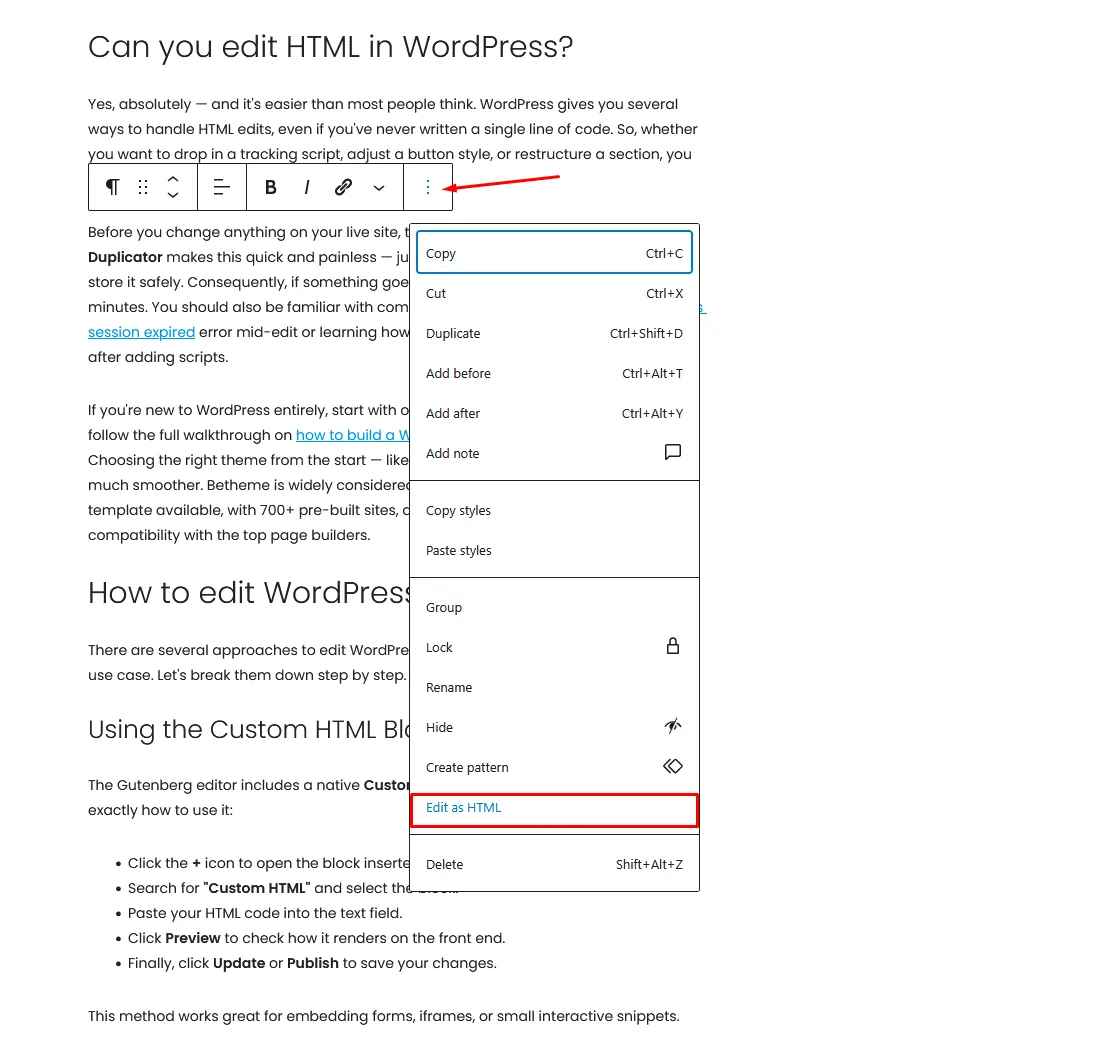
This is ideal for adding a CSS class, tweaking an attribute, or fixing a small formatting issue.
Using WP Code for Global Scripts
Sometimes, you need a snippet that runs sitewide — like Google Analytics or a live chat widget. Instead of touching theme files, use a plugin like WP Code. It lets you add global HTML to your header or footer safely. As a result, your scripts survive theme updates with zero extra effort.
How to edit HTML in WordPress BeTheme
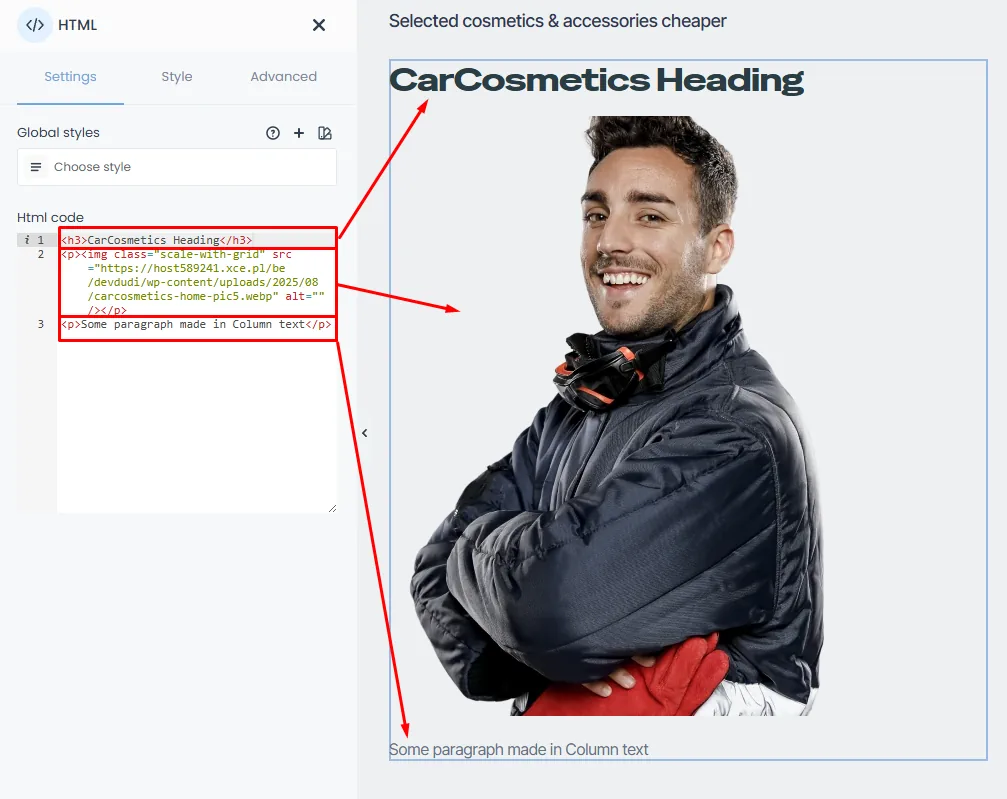
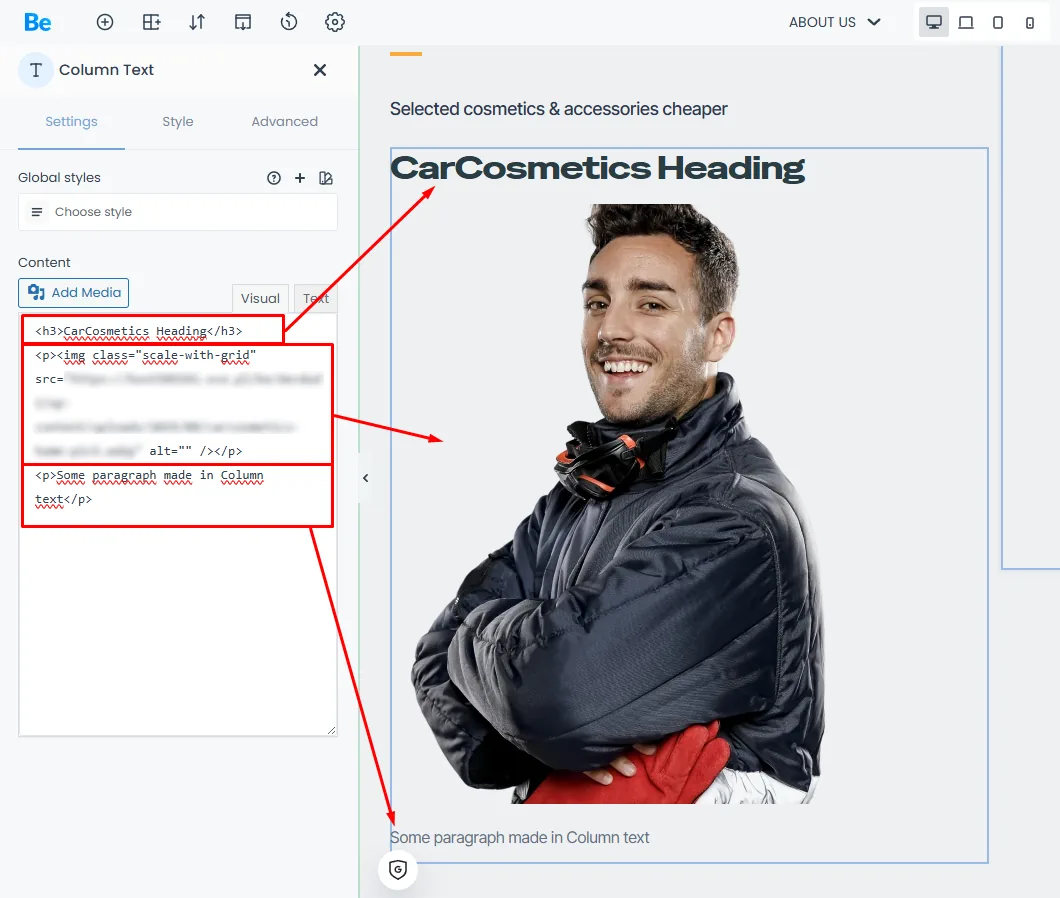
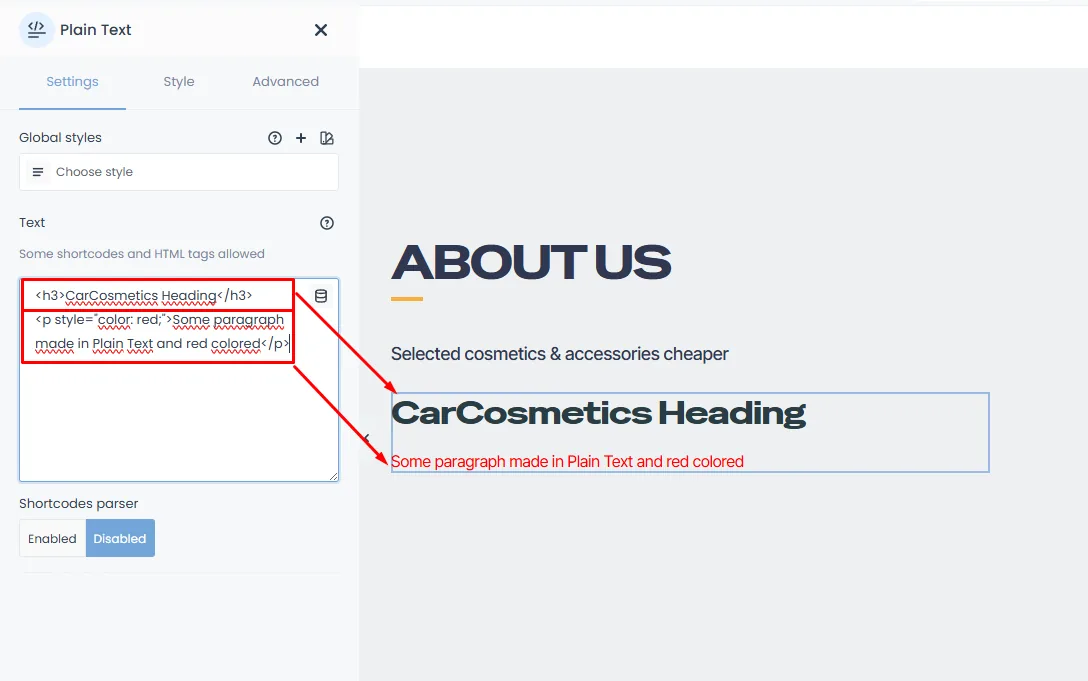
For a fully visual editing experience, page builders are exactly what you need. Betheme’s BeBuilder is one of the best tools for editing HTML in WordPress — drag, drop, and customize without writing a tag. It’s elements has their styling options attached in Style and Advanced tabs of each one. Because these elements are advanced and have a complex structure, there’s a real risk of breaking the page layout. That’s why builders don’t allow direct editing for these components; however if you want more and need to copy/paste any HTML code to your website there are several methods to do that but the most used is using elements that will parse your code to the front BeBuilder let’s you do that by these:
- HTML element with HTML editor built in
- Column Text element with Text/code editor to change HTML code
- Plain Text element – simplest of all still you can put any html in it
How to edit HTML in other WordPress builders like Elementor
Many professionals prefer visual builders because they provide a “no-code” environment. When using a small business website template within builders like Elementor, Divi Builder, WPBakery Page Builder, or SeedProd, you can achieve extensive customization visually.
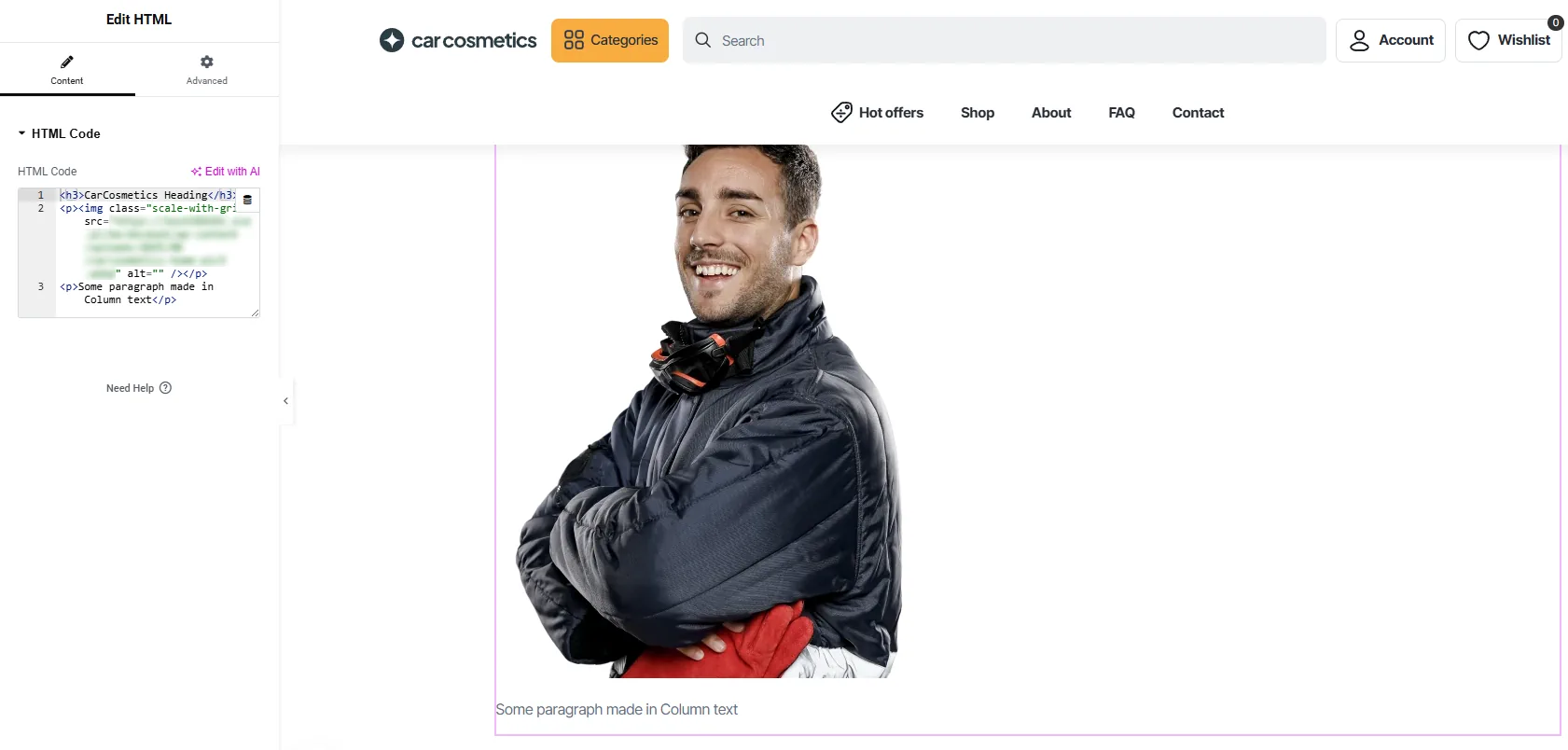
However, if you specifically need to know how to edit HTML in WordPress Elementor, you simply use the HTML Widget. You drag the widget onto your section and paste your code into the sidebar. This keeps your custom scripts organized within the visual layout.
Edit WordPress header code
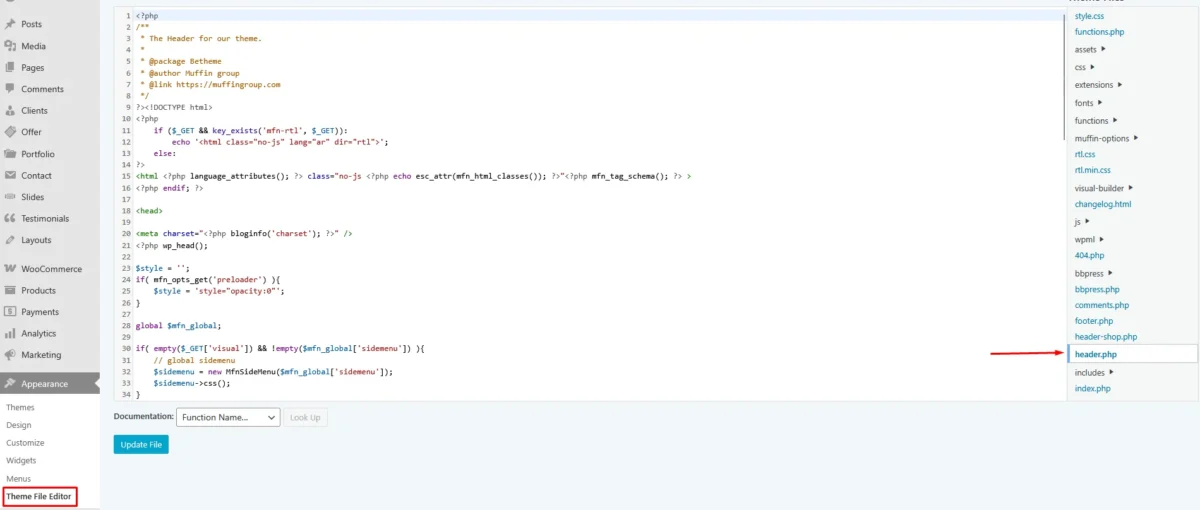
Adding a verification tag, tracking pixel, or custom font to your header is a common need. There are two main approaches. First, go to Appearance > Theme File Editor and open header.php — but always back up before doing this, since even a small typo can break your site. Second — and far safer — use a plugin like WP Code or your theme’s options. Betheme includes a dedicated section under Theme Options where you paste scripts into the header or footer without editing any files. This is undoubtedly the cleanest way to handle edit WordPress header code tasks.
Additionally, plugins like Yoast SEO and Rank Math let you inject header scripts directly from their settings panels — another solid, no-code solution.
A few extra tips
As you work on your site, a few other edits might come in handy. For example, you can edit the WordPress excerpt length to control how posts appear in archives, or fix images not displaying if something looks off after an update. If you run into upload issues, also check out what to do when a file is not permitted for security reasons.
Overall, WordPress gives you everything you need to manage HTML confidently — no developer required. Back up first, choose the right method for your task, and build on a strong theme like Betheme to make the whole experience easier from day one.