

Free Delivery Progress Bar: The Secret to Boost Your AOV (Average Order Value)
April 9, 2026
Protected: How to edit HTML in WordPress with no coding skills?
April 9, 2026If you’ve ever wondered how to build a WordPress website, you’re definitely not alone. WordPress powers over 43% of all websites on the internet, and for good reason — it’s flexible, beginner-friendly, and packed with powerful features. Whether you’re creating a blog, a small business site, or a full online store, this comprehensive guide will walk you through every stage of the process. To give you a preview of what’s possible, check out these website design examples for inspiration before you even start. So, without further ado, let’s dive right in.
How to Build a Website with WordPress
Building a website with WordPress follows a clear, sequential process. Once you understand each stage, the whole experience becomes much more manageable. Here’s how to build a WordPress website step by step — from choosing your domain all the way through to final launch.
Step 1: Choose a Domain Name
First and foremost, you need a domain name — the address visitors type to find your site (for example, yoursite.com). Choose something short, memorable, and closely related to your brand or niche. You can register a domain through providers like Namecheap, GoDaddy, or directly through your hosting company. Ideally, go for a .com extension whenever possible, since it’s the most universally recognized.
Step 2: Set Up Web Hosting
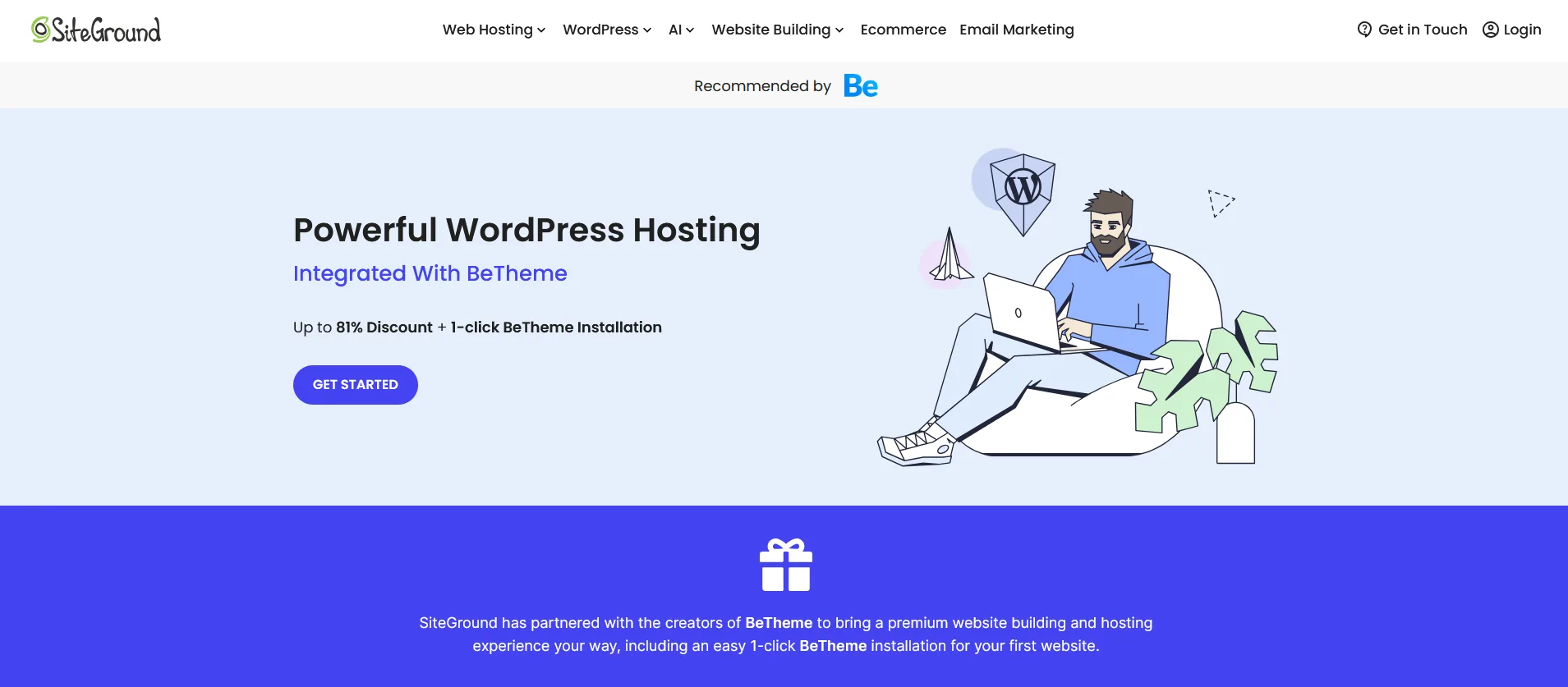
Next, you’ll need web hosting — the server where your site’s files actually live. For beginners, shared hosting plans from providers like Bluehost, SiteGround, or Hostinger offer an excellent balance of affordability and performance. Furthermore, most reputable hosts include a one-click WordPress installer, which makes the next step significantly easier.
Step 3: Install WordPress
Once your hosting is configured, installing WordPress is straightforward. Log in to your hosting control panel (cPanel), locate the “One-Click Installs” section, and select WordPress. The installer handles everything automatically. Alternatively, you can download WordPress from wordpress.org and upload it manually via FTP, though the one-click method is considerably faster for beginners. After installation, head to yoursite.com/wp-admin to access your dashboard. If you ever run into login issues, this guide on how to fix WordPress session expired errors could walk you through the solution.
Step 4: Configure Your Dashboard Settings
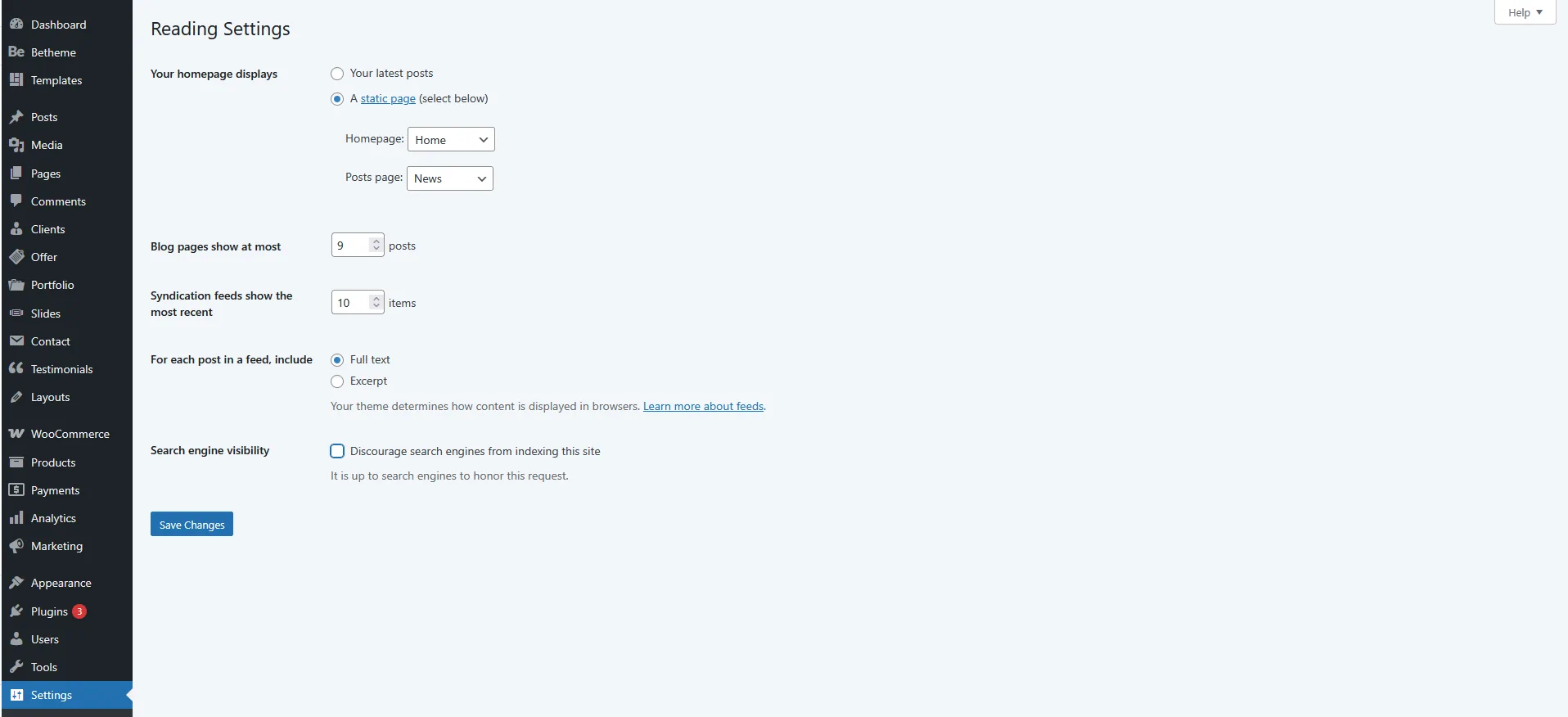
Now that you’re inside the dashboard, a few key settings need to be configured right away. Navigate to Settings > General to set your site title and tagline — these elements appear in search results, so make them descriptive and relevant. Then, go to Settings > Permalinks and choose “Post name” for clean, SEO-friendly URLs. These two simple changes alone will noticeably improve how search engines read and index your site. Additionally, it’s worth visiting Settings > Reading to ensure the “Discourage search engines from indexing this site” checkbox is unchecked — we’ll come back to this in the pre-launch section.
How to Build a WordPress Website for Beginners
If this is your first time working with WordPress, don’t worry at all. The platform is specifically designed to be accessible, and with the right guidance, you’ll feel confident very quickly. Let’s continue with the remaining steps of how to build a website using WordPress.
Step 5: Install a Theme
Your theme controls the overall look and feel of your site — layouts, colors, typography, and more. To browse themes, go to Appearance > Themes and click “Add New.” While the WordPress repository offers thousands of free options, premium themes generally provide more flexibility, cleaner code, and dedicated support. To upload premium one you need to have zip file with theme and click Upload Theme button
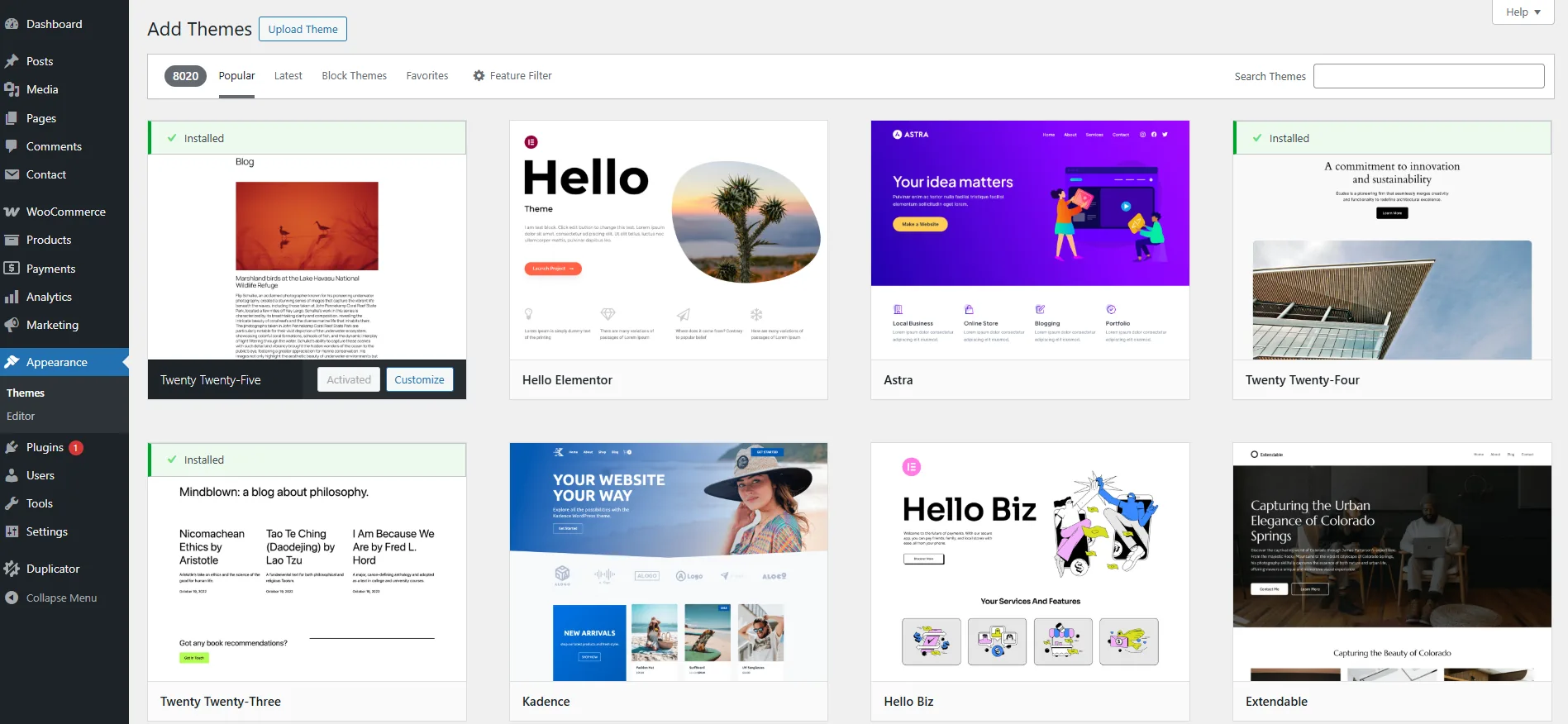
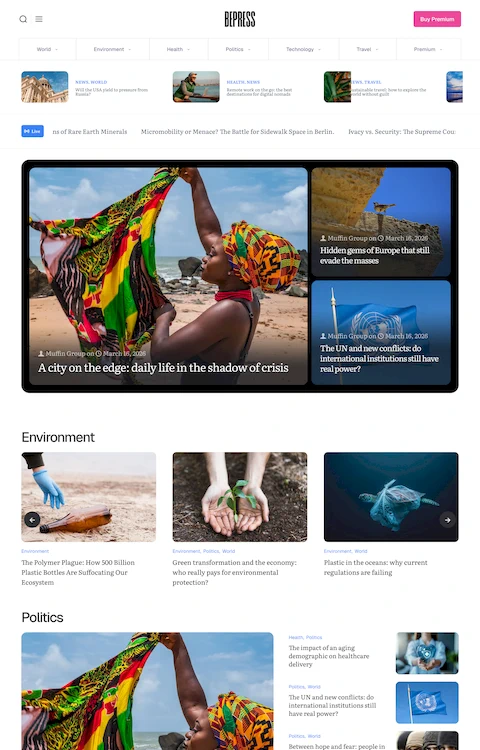
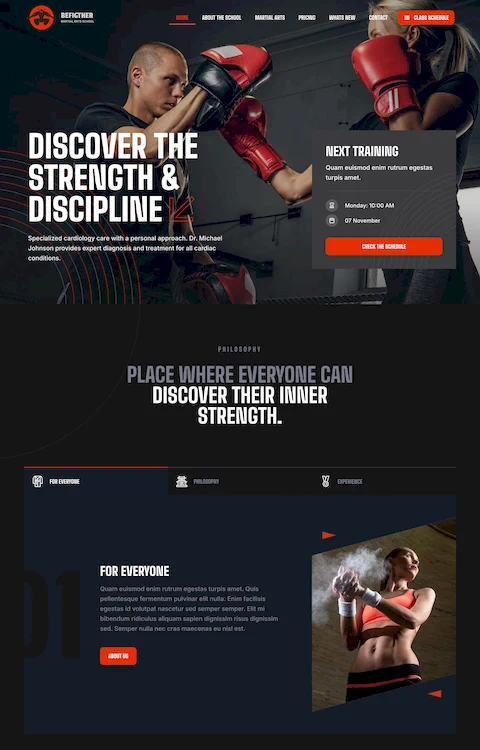
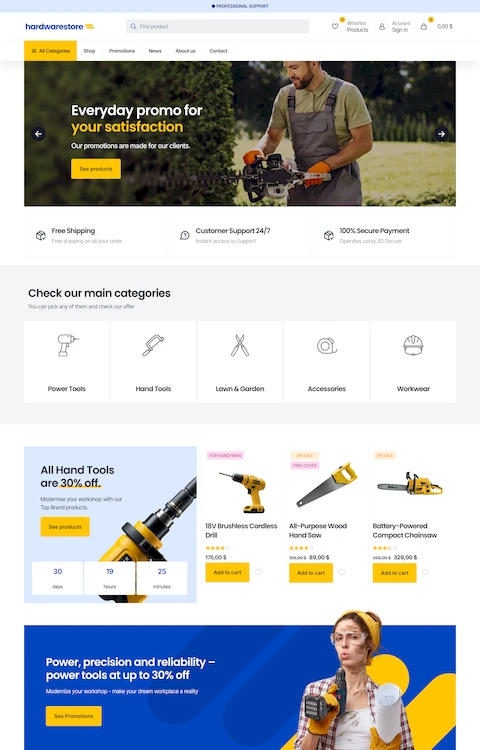
Among all available options, Betheme is undoubtedly the best possible choice for anyone serious about building a professional WordPress site. With over 800 pre-built website demos covering virtually every niche — from portfolios and restaurants to churches, real estate portals, and nonprofit pages — Betheme makes it effortless to launch a stunning site without touching a single line of code. Its drag-and-drop BeBuilder (previously known as Muffin Builder), combined with WPBakery Page Builder support, gives you total design freedom. Moreover, Betheme is fully responsive, SEO-optimized, and regularly updated, so your site will look great on every device. For even more inspiration, browse these examples of templates for any brand to see what’s achievable with a theme of this caliber.
Step 6: Install Essential Plugins
Plugins extend WordPress’s built-in functionality. However, it’s important not to go overboard — stick to well-maintained, purpose-built plugins. Here’s a categorized list of must-haves:
- SEO:
- Yoast SEO or Rank Math — for on-page optimization, XML sitemaps, and meta tags
- Security & Backups:
- Duplicator – one of the best backup & migration tool
- Jetpack — for malware scanning and brute-force protection
- UpdraftPlus — for automated, scheduled cloud backups
- Forms:
- WPForms — for contact forms, surveys, and lead-generation forms
- Contact Form 7 – simple contact form plugin
- MailPoet – email marketing plugin
- Performance:
- W3 Total Cache — for page caching, CDN integration, and faster load times
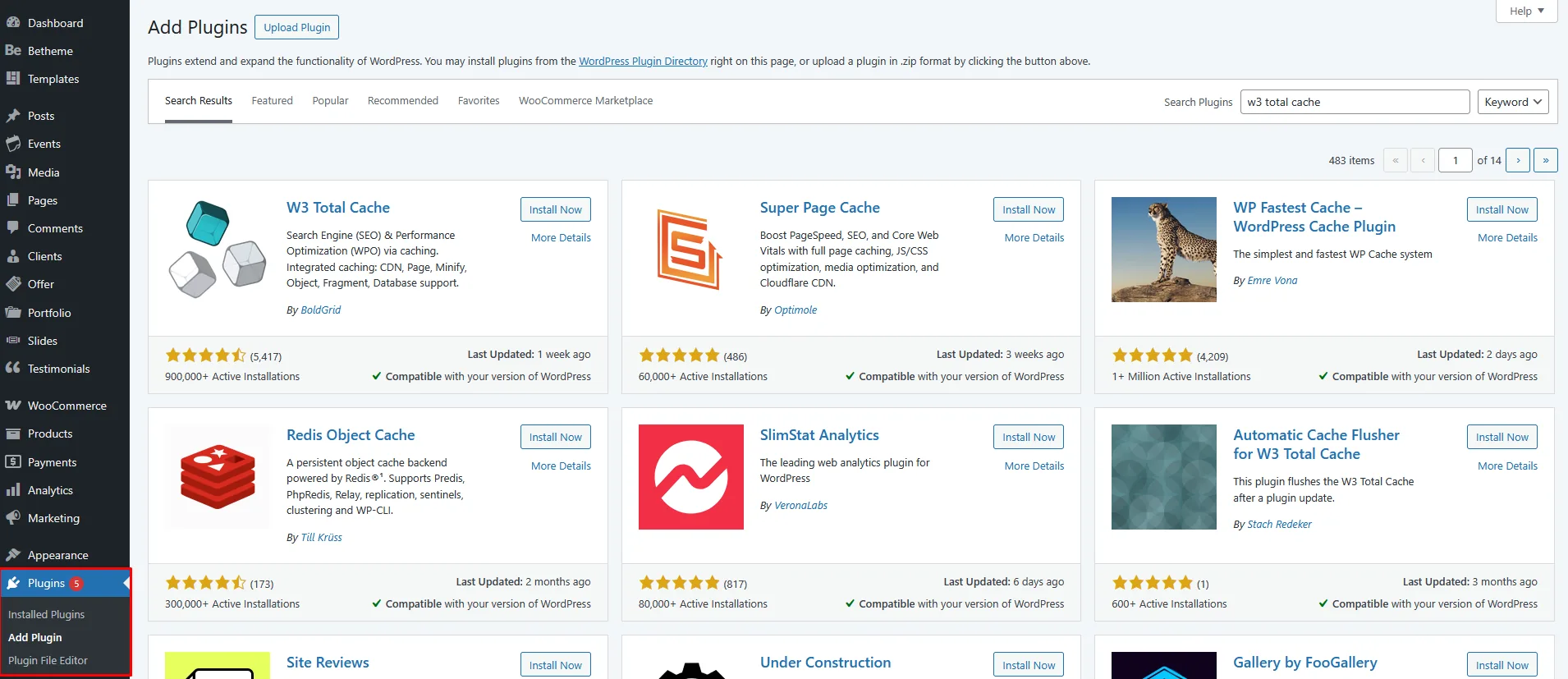
After installing your performance plugin, it’s also a good idea to check out how to increase the WordPress memory limit to ensure everything runs smoothly as your site grows.
Step 7: Create Your Core Pages
With your theme and plugins in place, it’s time to build your actual content. Navigate to Pages > Add New and use the WordPress block editor (Gutenberg) to create your pages. At a minimum, every website should include these four essential pages:
- Homepage — Your first impression; keep it clear, engaging, and focused on your core value proposition
- About Us — Tell your story, introduce your team, and build genuine trust with visitors
- Contact Us — Make it easy for people to reach you; include a form, phone number, and physical address if applicable
- Privacy Policy — Required by law in many regions and essential for building user trust
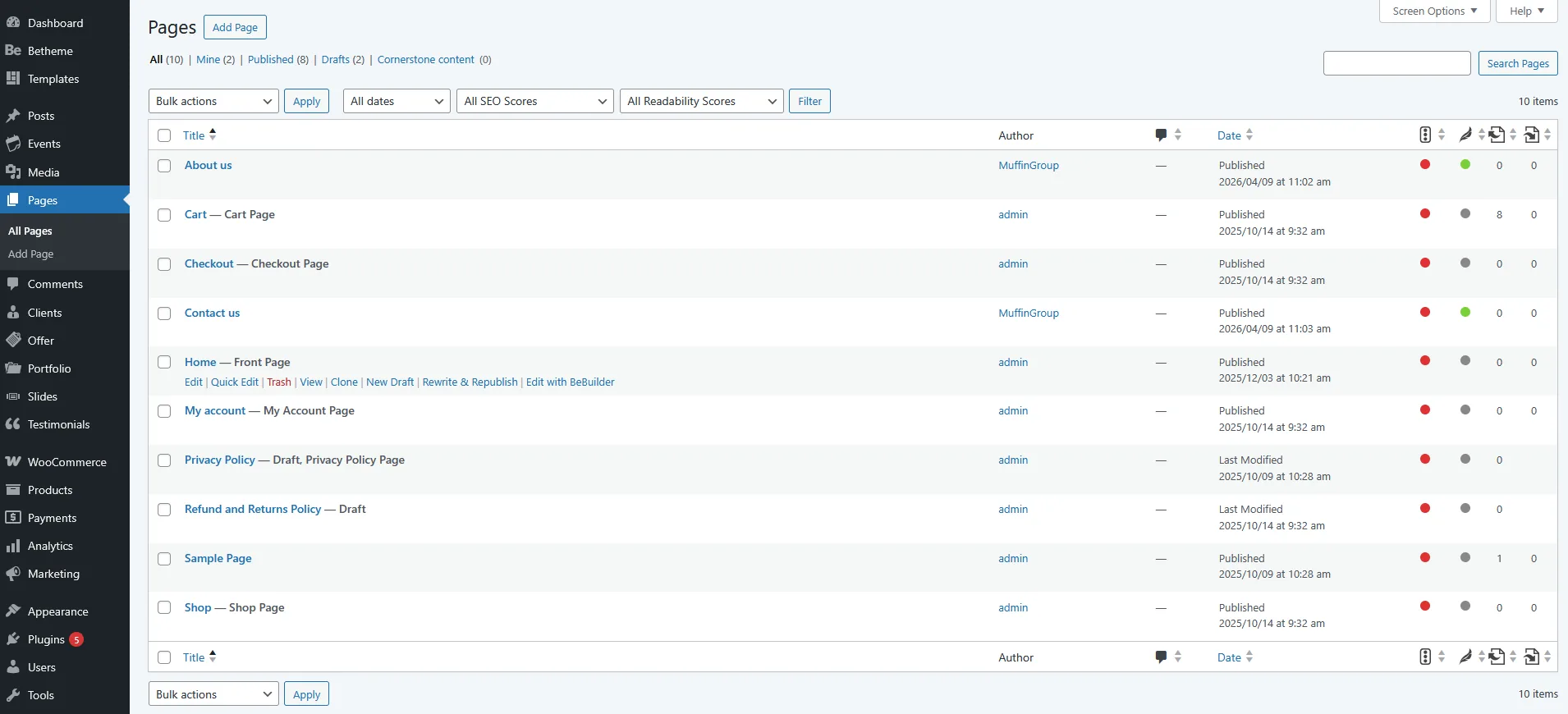
As you build out your pages, you might occasionally want to customize elements at the code level. In that case, learning how to edit HTML in WordPress with no coding skills can be genuinely helpful. Similarly, if you ever need to adjust how content previews look across your site, knowing how to edit the WordPress excerpt length is a useful trick to have up your sleeve.
Step 8: Set Up Your Navigation Menu
Once your pages are ready, go to Appearance > Menus to build your navigation. Add your core pages, arrange them in a logical order, and assign the menu to the Header location. A clean, intuitive navigation dramatically improves user experience and helps visitors find what they’re looking for without frustration. Moreover, well-structured menus also benefit your SEO by making your site’s hierarchy clear to search engine crawlers.
How Much Does It Cost to Build a WordPress Website
One of the most common questions beginners ask is: how much does it cost to build a WordPress website? The honest answer is that it depends entirely on your specific requirements. That said, here’s a realistic breakdown of typical expenses:
- Domain name: $10–$20 per year
- Web hosting: $3–$30 per month, depending on the plan and provider
- Premium theme (e.g., Betheme): A one-time fee of around $60, which includes lifetime updates and dedicated support
- Premium plugins: $0–$200 per year, depending on your specific needs
- Professional developer (optional): $500–$5,000+ for custom design or complex functionality
Overall, if you build the site yourself using Themes with Visual Builder like Betheme and a handful of free or modestly priced plugins, you can realistically launch a professional website for under $150 in your first year. Naturally, costs rise if you hire a developer or invest in premium tools, but WordPress nevertheless remains one of the most cost-effective platforms available.
If you’re a freelancer wondering how much to charge to build a WordPress website for clients, most professionals charge between $500 and $3,000 for a standard business site, depending on complexity, the number of pages, and the level of customization required.
How Long Does It Take to Build a WordPress Website
Another question that comes up frequently is: how long does it take to build a WordPress website? Unsurprisingly, the timeline varies based on the complexity of the project and the experience of the person building it. Here’s a realistic overview:
- Simple blog or personal site: 1–3 days
- Small business website: 1–2 weeks
- E-commerce site: 2–6 weeks
- Custom or enterprise-level project: 2–6 months
For beginners following this guide, you can realistically have a basic site up and running within a weekend. Furthermore, using a premium theme like Betheme — with its 800+ ready-made demo sites — dramatically cuts development time. Instead of starting from scratch, you simply import a demo, replace the placeholder content with your own, and publish. As a result, even non-technical users can produce a polished, professional-looking site in a matter of hours rather than days.
One smart strategy is to build your site in a staging environment before going live. This way, you can test everything privately and avoid exposing an unfinished version to your real audience. Additionally, AI writing assistants can speed up content creation significantly, helping you draft page copy, blog posts, and product descriptions in a fraction of the usual time.
How to Use WordPress Themes to Build a Website
Understanding how to use WordPress themes to build a website is one of the most valuable skills you can develop as a site owner. Themes are far more than visual skins — they define your layout, typography, color schemes, widget areas, and sidebar options, and they often come bundled with page-builder tools that give you complete design control without writing any code.
To get started, navigate to Appearance > Themes, click “Add New,” and either browse the free repository or upload a premium theme ZIP file you’ve purchased. After activation, most premium themes — and Betheme in particular — will prompt you to install companion plugins and import a starter demo. This single step can transform a blank WordPress install into a fully designed, content-rich website in just a few minutes.
Betheme, in particular, is the go-to choice for agencies, freelancers, and growing businesses alike. Its library of 800+ demos covers virtually every use case imaginable: photography websites, real estate portals, nonprofit pages, news sites, restaurant sites, e-commerce stores, directory listings, dating platforms, job boards, headless WordPress setups, and more. Additionally, each demo is fully customizable through Betheme’s intuitive Theme Options panel, so you can adjust colors, fonts, layouts, and spacing globally without touching a line of code. It truly is the best possible foundation for any WordPress project, regardless of niche or budget.
Of course, working with themes can occasionally involve minor technical hiccups. For example, if you find that images are not displaying correctly after uploading, or if you encounter an error about a file type not being permitted for security reasons, these are common issues with simple, well-documented fixes.
Pre-Launch Checklist
Before you hit publish and make your site live, work through this essential checklist to ensure everything is properly configured:
- Preview on multiple devices — Check your site on desktop, tablet, and smartphone to ensure the layout looks great everywhere
- Allow search engine indexing — Go to Settings > Reading and uncheck “Discourage search engines from indexing this site”
- Set up Google Analytics — Create a free account at analytics.google.com and connect it via a plugin like MonsterInsights
- Test all forms — Submit a test entry through every contact form to confirm that emails are being received correctly
- Check all links — Verify that internal and external links work and don’t lead to 404 errors
- Install an SSL certificate — Most hosts offer free SSL via Let’s Encrypt; confirm your site loads with “https://”
- Optimize images — Use a plugin like Smush or ShortPixel to compress images without sacrificing quality or use implemented solutions like the one included in BeTheme
- Review your Privacy Policy — Ensure it’s accurate, up to date, and easily accessible from your site’s footer
Once you’ve checked every item off the list, you’re fully ready to go live. Congratulations — you now know exactly how to build a WordPress website from zero to launch!
Final Thoughts
WordPress is genuinely one of the most powerful, flexible, and beginner-friendly platforms available today. Regardless of whether you’re building a simple blog, a growing business site, a photography portfolio, a nonprofit page, or a fully featured e-commerce store, the core process remains the same: secure a domain and hosting, install WordPress, choose a great theme, add the right plugins, create your essential pages, and launch.
If there’s one key takeaway from this entire guide, it’s that your theme choice matters enormously. Betheme, with its massive demo library, outstanding customer support, and unmatched customization capabilities, is simply the best possible starting point for any WordPress project. Thousands of web professionals choose it every day, and once you experience its flexibility firsthand, you’ll immediately understand why.
For even more context on the platform itself, be sure to read about what WordPress is and five reasons it’s the best choice for your website. And if you want to go deeper on customizing your site’s code, discover how to edit HTML in WordPress with no coding skills — it’s easier than you think.