

Jaw-Dropping Recipe Website Design Examples
February 24, 2026
Top Marketing Website Templates to Boost Conversions
February 25, 2026You open a website and instead of a map, there's a grey box with an error message. If you've been wondering how to fix "this page can't load Google Maps correctly," you're dealing with one of the most common Google Maps JavaScript API failures on the web.
The fix is usually quick. A missing API key, disabled billing in the Google Cloud Console, or incorrect domain restrictions. But the exact steps depend on whether you own the site or you're just visiting it.
This guide walks through every cause and solution, from setting up your Google Maps Platform credentials to troubleshooting browser console errors and switching to alternatives like OpenStreetMap or Mapbox when Google Maps keeps breaking.
What Does "This Page Can't Load Google Maps Correctly" Mean?
This error message shows up when a website fails to authenticate with the Google Maps Platform. It's a JavaScript API error, and it means the browser tried to load an interactive map but couldn't verify the credentials tied to that map.
The Google Maps JavaScript API throws this when something goes wrong with the API key. Either the key is missing, invalid, restricted incorrectly, or tied to a billing account that isn't active.
You'll typically see it as a grey box where the map should be, sometimes with a "For development purposes only" watermark splashed across a low-resolution map. The browser console usually logs one of several specific error codes alongside it.
The Two Sides of This Error
If you're a site visitor, you're seeing someone else's broken map. You can't fix the root cause, but you can try workarounds like clearing your cache or disabling browser extensions that block third-party scripts.
If you're a site owner or developer, this is your problem to solve. The fix almost always lives inside the Google Cloud Console, where your API key and billing settings are managed.
Around 73% of U.S. websites use Google Maps and its API for mapping features, according to Loopex Digital's 2026 analysis. That's a massive number of sites that could potentially run into this error if their API configuration breaks.
Common Error Variations
| Error Code | What It Means |
| InvalidKeyMapError | The API key exists but is wrong or corrupted. |
| MissingKeyMapError | No API key was included in the script tag. |
| RefererNotAllowedMapError | Key restrictions (HTTP referrers) are blocking your domain. |
| ApiNotActivatedMapError | The Maps JavaScript API isn't enabled in the Cloud Console. |
Each of these points to a different root cause, and the fix changes depending on which one shows up. We'll get into the specifics of each later.
Why This Error Appears on Websites
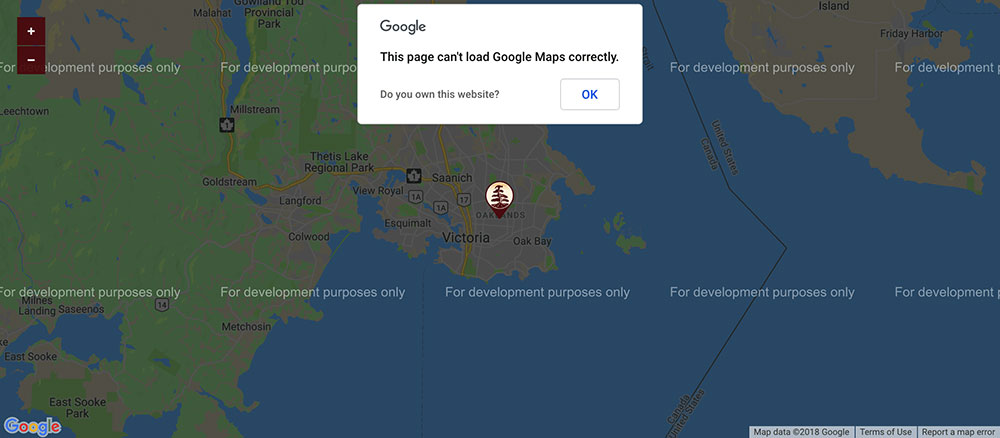
The "this page can't load Google Maps correctly" message doesn't appear randomly. There's always a technical reason behind it, and most of the time it traces back to the Google Cloud Console settings.
Here are the most common triggers:
- No API key in the embed code: The website's script tag loads the Maps JavaScript API without passing a key parameter
- Billing not enabled: The Google Cloud project doesn't have an active billing account linked to it
- Key restrictions blocking the domain: HTTP referrer restrictions are set up but don't match the site's actual URL pattern
- API not enabled: The Maps JavaScript API (or Places API, Directions API) hasn't been turned on in the project's API library
- Quota exceeded: The site blew past its usage limit or has an unpaid invoice
WebTechSurvey data shows over 1.87 million live websites currently use the Google Maps API. Any of them can hit this error if their configuration drifts.
Billing Changes That Broke Older Websites
On July 16, 2018, Google rolled out a completely new pricing model for its Maps Platform. Before that date, many websites ran Google Maps with no API key at all, or with a free key that didn't require billing information.
The switch to pay-as-you-go pricing changed everything. Every Google Cloud project using the Maps JavaScript API now requires a valid billing account, even if usage stays within the free tier.
Google provides a monthly credit (historically $200) to cover basic usage. That's enough for roughly 28,500 map loads per month at standard pricing, according to Google's own documentation. But if you never set up billing in the first place, you get zero loads. The map just breaks.
This hit WordPress sites especially hard. Tons of themes and plugins from companies like WPBakery and Elementor had Google Maps baked in. They embedded maps without ever asking users to provide their own API key. When Google flipped the switch, those maps went dark overnight.
The WP Go Maps plugin alone (formerly WP Google Maps) runs on over 300,000 active WordPress sites, per Search Engine Journal's 2026 report. That's 300,000 sites where a single misconfigured API key could trigger this exact error.
How to Fix This Error as a Website Owner
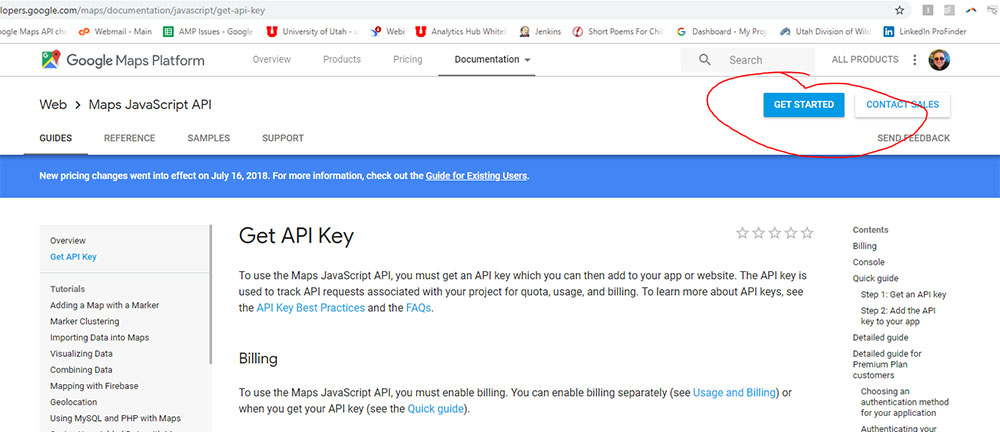
If you control the website, this is a straightforward fix. It takes about 10 minutes if you know where to go.
Step-by-Step API Key Setup
1. Open the Google Cloud Console at console.cloud.google.com and select your project (or create a new one).
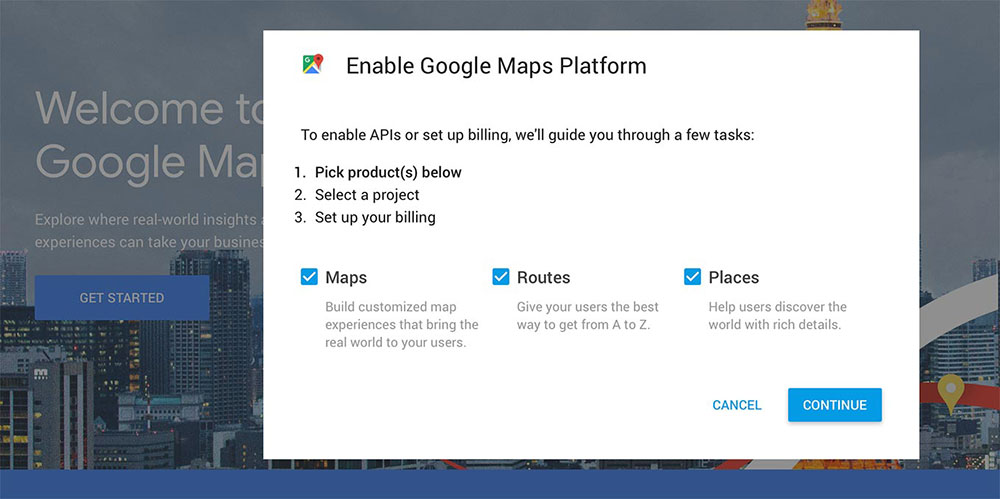
2. Enable the Maps JavaScript API. Go to APIs & Services, then Library. Search for "Maps JavaScript API" and click Enable. If your site also uses directions or place search, enable the Directions API and Places API too.
3. Create an API key. Go to APIs & Services, then Credentials. Click "Create Credentials" and select "API Key." Copy the key that appears.
4. Add billing. Go to Billing in the left sidebar. Link a credit card or payment method. You won't be charged unless you exceed the free monthly credit.
5. Insert the key into your site. Find the script tag that loads the Maps API and add your key:
<script src="https://maps.googleapis.com/maps/api/js?key=YOURAPIKEY&callback=initMap"></script>
Google's own API checker Chrome extension can verify the key is working correctly on your site after you've made the change.
Setting Up API Key Restrictions Correctly
This is where I've seen people trip up the most. You create the key, paste it in, the map works. Then you add restrictions to lock it down and the map breaks again.
HTTP referrer format matters. When restricting by website URL, you need to add both patterns:
yourdomain.com/.yourdomain.com/
The first covers the root domain. The second covers subdomains like www.yourdomain.com or staging.yourdomain.com. Missing either one is the single most common reason restrictions break a working key.
API restrictions are separate from referrer restrictions. Under "API restrictions" on the key settings page, select "Restrict key" and check only the APIs your site actually uses. If you pick Maps JavaScript API but your site also calls Places API, the Places calls will fail silently.
Fixing the Error in WordPress
WordPress is where this error shows up the most. Between themes bundling map widgets and plugins adding location features, there are a dozen places an API key might need to go.
Plugin-Specific Locations
WPBakery Page Builder: Go to WPBakery, then Settings, then the Google Maps tab. Paste your API key in the dedicated field.
Elementor: Navigate to Elementor, then Settings, then Integrations. The Google Maps API key field sits right there. Took me forever to find it the first time because I kept looking in the widget settings instead.
WP Google Maps (WP Go Maps): Go to Maps, then Settings. The API key field is on the first screen. This plugin actually walks you through the setup pretty well.
Google Maps Widget: Check Settings, then Google Maps Widget. Some versions also let you enter the key directly on the widget configuration screen.
When the Key Is Hardcoded in the Theme
Some WordPress themes don't use a settings field at all. They hardcode the Maps JavaScript API script tag directly into header.php or footer.php.
Look for the script tag in your theme files. If you see key=YOURAPIKEY or key= with nothing after it, that's where you paste yours. Use a child theme if you want the change to survive theme updates.
Also check if Contact Form 7 or Gravity Forms are loading maps. Both can pull in Google Maps for location fields, and both need the key configured separately.
Building a site that actually works well for visitors goes beyond just fixing map errors. It takes attention to things like form design and creating a layout where people can find what they need without frustration. A broken map on an otherwise user friendly website sticks out badly.
Fixing the Error in Shopify, Wix, and Squarespace
Not everyone runs WordPress. And the fix looks different on each platform because they give you different levels of code access.
Shopify
In Shopify, map sections are usually part of your theme. Go to Online Store, then Themes, then click "Edit Code." Search for theme.liquid or the specific section file that loads Google Maps.
Look for the Google Maps script tag and add your API key. Some newer Shopify themes have a dedicated "API key" setting in the theme customizer under the map section, so check there first before editing code.
Wix
Wix's built-in map widget handles the API key on its own. But if you're using Velo (Wix's developer tools) to embed custom maps, you need to add the key manually through the Velo panel.
For the standard Wix map element, the error usually means something else is going on. Try removing and re-adding the map element. If it still fails, the issue might be on Wix's end, not yours.
Squarespace
Squarespace has a native map block that typically works without any API key from you. The platform handles the Google Maps integration internally.
If you're seeing the error on a Squarespace site, it's likely coming from custom code injected through Settings, then Advanced, then Code Injection. Check for any manually embedded map scripts there and make sure they include a valid key. When Squarespace's own map block fails, sometimes the only fix is to contact their support or your template developer.
Building pages on these platforms, whether product landing pages or event landing pages, means you need maps that actually load. A grey box where your location should be kills trust immediately.
How to Fix This Error as a Site Visitor
Here's the thing. If you're just browsing a website and the map won't load, you probably can't fix the actual problem. The broken API key or billing issue sits on the website owner's side.
But there are a few things worth trying.
Quick Browser Fixes
- Clear your browser cache and cookies for the specific site. Stale cached scripts can cause the map to fail even after the owner fixes it
- Try incognito or private browsing mode. This loads the page without extensions and with a clean cache
- Disable JavaScript-blocking extensions. Tools like uBlock Origin, NoScript, and Privacy Badger can block the Google Maps script from loading entirely
That last one is more common than you'd think. The ERRBLOCKEDBYCLIENT error in Chrome's developer tools specifically means a browser extension is stopping the script. Ad blockers and privacy tools are usually the culprit.
When It's Not Your Problem to Fix
If none of the above works, the website itself has a broken Google Maps configuration. There's nothing you can do on your end except:
- Go directly to maps.google.com and search for the address yourself
- Contact the website owner and let them know their map is broken
Most visitors don't bother with the second option. They just leave. For site owners, that should be motivation enough to test maps regularly across different browsers. Sites with good UX don't let broken embeds slip through. A map that fails to render disrupts the entire website layout and makes the page look unfinished.
Google Cloud Console Billing and Quota Troubleshooting
Sometimes the API key is fine. The Maps JavaScript API is enabled. The referrer restrictions match your domain. And the map still won't load.
That usually points to a billing or quota problem inside your Google Cloud project.
Checking Your Billing Account Status
Go to the Google Cloud Console and click Billing in the left sidebar, then Account Management. You're looking for the account status. It should say "Active."
If it says "Suspended" or "Closed," that's your problem. Google suspends billing accounts for failed payments, expired cards, or policy violations. No active billing means no API access, period.
Since July 2018, every Google Maps Platform project requires a valid billing account linked to a Google Cloud Platform project, even for usage within the free tier. Google's developer documentation makes this explicit.
Quota Errors and Usage Spikes
The APIs & Services dashboard shows real-time request counts, error rates, and latency for every enabled API. If you see a spike in 4xx errors, something is rejecting your requests.
Common quota scenarios:
- OverQueryLimit errors mean you've exceeded the requests-per-second or requests-per-day cap
- A sudden traffic spike (or a bot crawling your site) can burn through quota fast
- Unpaid invoices from previous months can cause Google to throttle or disable the API entirely
Google Cloud documentation recommends setting up budget alerts at 50%, 75%, and 90% thresholds to catch spending issues before they cause service interruptions.
Understanding the Free Tier
Google restructured its Maps Platform free credit system effective March 1, 2025, per Store Locator Widgets' reporting. The old model gave a flat $200 monthly credit across all APIs. The new system grants a fixed number of free calls per month for each individual API.
For the Maps JavaScript API specifically, Essentials-tier SKUs include 10,000 free map loads per month. Once you pass that, charges apply at standard pay-as-you-go rates.
If your site gets moderate traffic, those free loads can disappear quickly. A real estate landing page with an embedded map, for instance, burns one map load every time someone opens the page.
Browser Console Errors and What They Mean
The browser's developer console is the fastest way to figure out what's actually going wrong. Every Google Maps JavaScript API failure writes a specific error code there.
Open the console in your browser (F12 on Windows, Cmd+Option+J on Mac in Chrome) and look for red error messages starting with "Google Maps JavaScript API error."
| Console Error | Cause | Fix |
| InvalidKeyMapError | API key is wrong or corrupted | Regenerate key in Cloud Console |
| MissingKeyMapError | No key in the script tag | Add key= parameter to the script URL |
| RefererNotAllowedMapError | Domain not in allowed referrers | Update HTTP referrer restrictions |
| ApiNotActivatedMapError | API not enabled in the project | Enable Maps JavaScript API in library |
| OverQueryLimit | Too many requests | Wait, increase quota, or check billing |
How to Open the Console in Each Browser
Chrome: Right-click the page, click "Inspect," then click the "Console" tab. Or press F12.
Firefox: Same right-click method, or use Ctrl+Shift+K (Cmd+Option+K on Mac) to jump straight to the console.
Safari: You need to enable Developer Tools first under Safari, then Preferences, then Advanced. After that, use Cmd+Option+C.
Microsoft Edge: Press F12 or right-click and select "Inspect." The Console tab works the same as Chrome since Edge runs on Chromium.
When the Console Shows ERRBLOCKEDBYCLIENT
This one's different. It's not a Google Maps API error. It means a browser extension is actively blocking the Google Maps script from loading.
According to WordPress.org support forums, the ERRBLOCKEDBY_CLIENT message specifically indicates the browser itself (the "client") stopped the request. Ad blockers and privacy extensions are usually responsible.
If you're a developer debugging this, open the page in incognito mode with extensions disabled. If the map loads fine there, you've confirmed an extension conflict. You can't fix this for every visitor, but you can add a fallback message telling users to check their browser extensions.
Alternatives When Google Maps Keeps Failing
Look, sometimes the Google Maps API just isn't worth the hassle. Maybe you're tired of billing surprises. Maybe you need a map that works without any API key at all. There are solid alternatives.
OpenStreetMap with Leaflet.js
This is the free option. Completely free. No API key. No billing account. No credit card.
Leaflet.js is an open-source JavaScript library that weighs about 30 KB gzipped and renders interactive maps using OpenStreetMap tile data. Geoapify's 2025 comparison data shows Leaflet averaging over 1.4 million npm downloads per month, making it the most downloaded map library by a wide margin.
Major organizations use Leaflet, including The Washington Post, NPR, Financial Times, and the European Commission. It's not a toy.
Mapbox
Free tier: 50,000 web map loads per month (25,000 for mobile).
Paid tier: $5 per 1,000 loads beyond the free cap.
Mapbox offers deeper customization than Google Maps, according to All Front's 2024 analysis. Companies like Strava, Snapchat, and BMW use it for design flexibility and pricing. The trade-off is a steeper learning curve.
Foursquare famously moved to Mapbox, driven partly by pricing considerations and partly by the need for more control over map styling.
Other Options Worth Knowing
Static Google Maps embed: Instead of the interactive JavaScript version, use a simple iframe embed from maps.google.com. It doesn't require an API key for basic use, though Google may limit or watermark it.
Apple MapKit JS: Works well for sites targeting Apple ecosystem users. Requires an Apple Developer account.
Plain text address with a link: Sometimes the simplest fix. Just display the address and link to Google Maps directly. No embed, no API, no error.
| Alternative | Cost | API Key Required | Best For |
| OpenStreetMap + Leaflet.js | Free (Open Source) | No | Budget projects, privacy-focused sites, and high-traffic sites wanting $0 costs. |
| Mapbox | Free tier (up to 50k loads) + Pay-as-you-go | Yes | High-end custom design, data visualization, and complex mobile apps. |
| Apple MapKit JS | Free up to 250k daily views | Yes | Apple ecosystem apps and high-volume sites that need a huge free daily limit. |
| Google Maps Embed API | Free (Unlimited requests) | Yes | Simple "Contact Us" pages; basic location markers with no custom coding. |
Whichever route you pick, make sure the map implementation fits the rest of your web design principles. A map alternative that clashes with your site's look will create new problems while solving the old one. If you run a technology website or a SaaS website, embedding Leaflet.js or Mapbox fits naturally into a modern tech stack.
Preventing This Error From Happening Again
Fixing the "this page can't load Google Maps correctly" error once is fine. Fixing it every few months because something drifts is a waste of time.
Set Up Budget Alerts
Inside the Google Cloud Console, go to Billing, then Budgets & Alerts. Create a budget for your Maps API usage and set alert thresholds at 50%, 75%, and 100% of your expected spend.
Google sends email notifications when you cross each threshold. You can also connect alerts to Pub/Sub for Slack notifications or automated responses. This alone would have prevented most of the "my map suddenly stopped working" support tickets I've seen over the years.
Monitor API Usage
The APIs & Services dashboard shows request volume, error rates, and latency for each enabled API. Check it at least monthly.
Watch for patterns. A sudden spike in map loads might mean a bot is hammering your site, or a new marketing campaign is driving more traffic than expected. Either way, you want to know before it eats your quota.
Keep Restrictions Updated
API key restrictions break when your setup changes. Moving to a new domain, adding a staging subdomain, switching from HTTP to HTTPS. Any of these can cause the RefererNotAllowedMapError.
After any domain or infrastructure change, check the API key's HTTP referrer restrictions in the Google Cloud Console. Add the new URL patterns before the old ones stop working.
Document the API Key Location
This sounds basic, but it saves serious headaches. Write down (or add to your project docs) exactly where the Google Maps API key is used.
Is it in a WordPress plugin setting? A theme file? A JavaScript configuration object? An environment variable? If you get hit by a bus (or just go on vacation), the next person needs to find it fast.
Your website checklist should include a line item for API key verification. Treat it like any other piece of critical site infrastructure. If you're building with a team, make sure this is documented alongside web design elements and deployment procedures.
FAQ on How To Fix This Page Can't Load Google Maps Correctly
What does "this page can't load Google Maps correctly" mean?
It's a Google Maps JavaScript API error. The website failed to authenticate with the Google Maps Platform, usually because the API key is missing, invalid, or tied to a billing account that isn't active.
How do I get a Google Maps API key?
Go to the Google Cloud Console, create a project, enable the Maps JavaScript API, and generate a key under Credentials. You also need to link a billing account, even if you stay within the free tier.
Why did my Google Maps suddenly stop working?
Most likely a billing issue. Google requires active billing on every project. An expired credit card, unpaid invoice, or suspended account will cause the map to fail immediately. Check your billing status first.
Can I fix this error as a site visitor?
Sometimes. Try clearing your browser cache, opening the page in incognito mode, or disabling extensions like uBlock Origin or NoScript. If none of that works, the problem is on the website owner's side.
How do I fix Google Maps not loading in WordPress?
Paste your API key into the correct plugin or theme settings. Check WPBakery, Elementor, or WP Google Maps settings panels. Some themes hardcode the script tag in header.php or footer.php, so check those files too.
What is the RefererNotAllowedMapError?
Your API key has HTTP referrer restrictions that don't match your domain. Add both yourdomain.com/ and .yourdomain.com/ to the allowed referrers list in the Google Cloud Console key settings.
Is Google Maps API free to use?
Partially. Google provides free monthly usage for each Maps Platform API. The Maps JavaScript API includes 10,000 free map loads per month under the current pricing model. Beyond that, pay-as-you-go rates apply.
What are the best free alternatives to Google Maps?
OpenStreetMap paired with Leaflet.js is completely free with no API key required. Mapbox offers 50,000 free web map loads per month. Both are production-ready and used by major organizations worldwide.
How do I check Google Maps errors in my browser?
Open Chrome DevTools with F12 and click the Console tab. Look for error messages starting with "Google Maps JavaScript API error." The specific error code (like InvalidKeyMapError or MissingKeyMapError) tells you exactly what's wrong.
How do I prevent this error from happening again?
Set up budget alerts in the Google Cloud Console at 50%, 75%, and 100% thresholds. Monitor the APIs & Services dashboard monthly. Update API key restrictions whenever you change domains or add staging environments.
Conclusion
Knowing how to fix "this page can't load Google Maps correctly" comes down to checking a few specific things. Your API key configuration, your Google Cloud billing status, and your domain referrer restrictions. That covers about 90% of cases.
For WordPress users running plugins like Elementor or WP Go Maps, the fix is usually just pasting the key in the right settings field. Shopify and Squarespace users may need to dig into theme code or code injection panels.
If you're a visitor seeing the error, clearing your cache or disabling browser extensions like Privacy Badger might help. But most of the time, it's not yours to fix.
And if Google Maps keeps causing problems, alternatives like Leaflet.js with OpenStreetMap or Mapbox give you reliable map rendering without the billing headaches. Set up your budget alerts, document where your API key lives, and monitor your usage dashboard. That way, the grey box stays gone for good.